Table of Contents
- Why You Need Your LinkedIn Contacts Offline
- What an offline contact list changes
- What actually works
- Using LinkedIn's Native Data Export Feature
- The official export path
- What the export includes
- The real limitation
- Mapping Your Exported CSV for a CRM
- Clean the file before import
- A simple field map
- Add context before outreach
- Common import mistakes
- Alternative Methods and Third-Party Tools
- Where the native method stops
- Comparison of Contact Export Methods
- Which tool type fits which use case
- Safety checks before you use any outside tool
- Building Authentic Engagement With Your Network
- Your list is only as useful as your follow-up
- What works better than a mass message
- The practical habit
- Privacy Ethics and LinkedIn's Policies
- The safe standard
- Policy and compliance judgment

You probably have this problem already. Your LinkedIn network took years to build, but the actual contact data sits inside LinkedIn unless you export it.
That matters when you want to back up relationships, sort contacts by company or role, import names into a CRM, or send a thoughtful follow-up outside the platform. It also matters when you don't want your entire network strategy tied to one interface and one inbox.
Most guides stop at the download button. That’s only half the job. The useful part starts after the CSV lands in your inbox, when you clean it, map it, and decide what belongs in a CRM, what belongs in a spreadsheet, and what shouldn’t be used at all.
Why You Need Your LinkedIn Contacts Offline
A LinkedIn profile is not a contact database. It’s a social layer on top of one.
When you export linkedin contacts into a spreadsheet, you turn a scrolling feed into something you can sort, tag, and revisit. That changes how you work. A founder can separate past clients from investors. A recruiter can split warm relationships from inactive ones. A consultant can build a simple follow-up list by company and title instead of searching LinkedIn every time.
What an offline contact list changes
A local file gives you control in a way the platform view doesn’t.
- Backup protection: If you lose access to your account, change jobs, or want a second record outside LinkedIn, your network still exists in a usable file.
- Better segmentation: Excel and Google Sheets make it easy to group contacts by employer, title, region, or notes you add later.
- Cleaner outreach prep: You can prepare one-to-one follow-ups, holiday check-ins, referral asks, or reactivation campaigns without manually clicking profile by profile.
- CRM readiness: A CSV is the bridge between LinkedIn and tools like HubSpot, Pipedrive, Close, or even Gmail contacts.
Keep the export simple at first. The best first move isn’t a giant automation build. It’s a clean list you can trust.
An offline list also helps with planning content and relationship-building. If you're working on outbound, account-based outreach, or creator-led networking, it pairs well with broader LinkedIn lead generation strategies that focus on message quality, targeting, and timing instead of random connection volume.
What actually works
The official export works well for your own network. It’s the safest place to start, and for many professionals it’s enough.
What doesn’t work is assuming the raw file is ready for outreach the moment you download it. It usually needs cleanup, field mapping, and restraint. A messy CSV pushed straight into a CRM creates duplicate records, weak personalization, and bad habits fast.
Using LinkedIn's Native Data Export Feature
A common moment triggers this export. You need to add LinkedIn relationships into HubSpot, clean up an old networking list, or prep follow-ups after an event, and you realize LinkedIn is a poor place to manage that work one profile at a time.
The safest starting point is LinkedIn’s own Get a copy of your data tool. It keeps you inside the platform, avoids handing your login to a third-party app, and gives you a file you can inspect before you move anything into a CRM. LinkedIn may send the archive quickly or take longer depending on account activity and the type of data requested, as described in Amplemarket’s guide to exporting LinkedIn contacts.

The official export path
Use the settings menu inside LinkedIn:
- Open Settings and Privacy
- Go to Data Privacy
- Choose Get a copy of your data
- Select Connections if you only want your network, or choose the broader archive if you need other account data
- Submit the request
- Download the file from the email LinkedIn sends to your account
The download usually arrives as a ZIP file. In most cases, the contact list appears as Connections.csv.
What the export includes
For first-degree contacts, the CSV is usually enough to start organizing records outside LinkedIn. Typical columns include:
- First name
- Last name
- Email, if the contact made it available through LinkedIn
- Company
- Position
- Date connected
- LinkedIn profile URL
That mix matters because it supports two practical jobs right away. First, it gives you a relationship inventory you can sort and review. Second, it gives you a base file you can prepare for CRM import, owner assignment, and light outreach planning.
The catch is coverage. The export is useful, but it is not a full contact database. Many rows will not include an email address, and some company or title fields will be outdated if the person changed roles after you connected.
The real limitation
Treat this file as a network export, not a prospecting shortcut.
LinkedIn only shares contact details that the other person has chosen to make available through the platform, so private emails often do not appear. That makes the CSV strong for account mapping, reconnecting, and record creation. It makes it weak for bulk outbound or any workflow that depends on complete email coverage.
This is also where teams create avoidable problems. They export the file, push it straight into a CRM, and start emailing anyone with an address attached. That approach creates bad records and worse outreach. A better use case is to import carefully, add source labels such as "LinkedIn connection," keep consent context in your notes, and reserve email follow-up for contacts where the relationship or permission is clear.
If your goal is to stay active with the people you already know after the export, LinkedIn growth activity strategies on Upvote Club can support the visibility side of that work.
A short walkthrough helps if you want to see the screens before doing it yourself.
Mapping Your Exported CSV for a CRM
Downloading the file is easy. Making it usable is where attention to detail often wavers.
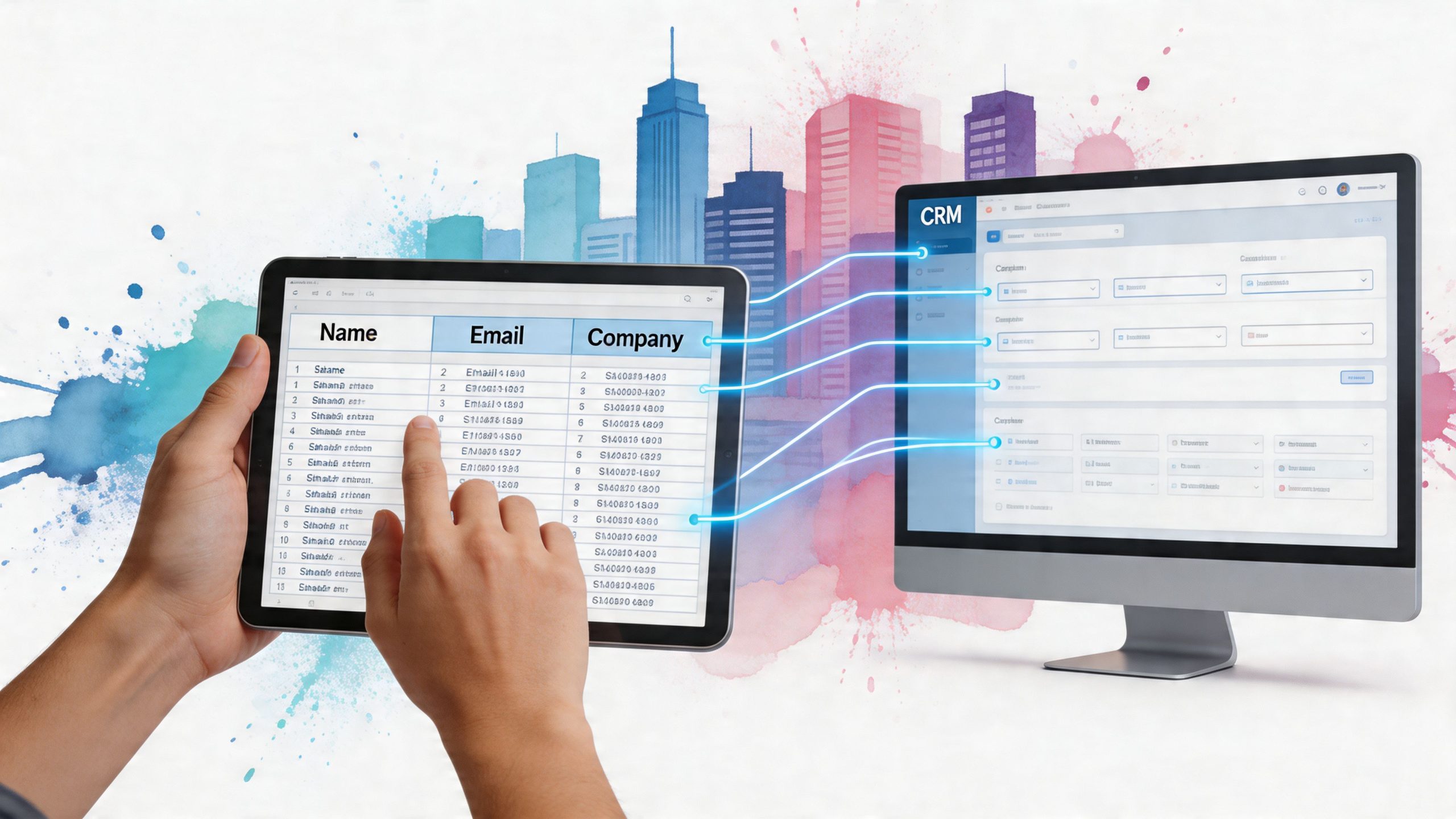
A raw LinkedIn CSV often includes enough detail to start a CRM import, but not enough structure to trust without a review. If you skip cleanup, you’ll create duplicate records, blank key fields, and a pile of contacts with no owner, no lifecycle stage, and no notes.
Clean the file before import
Open Connections.csv in Google Sheets or Excel first. Don’t import directly into your CRM unless you already know the column structure and deduplication rules.
Check these items before anything else:
- Header names: Make sure each column has a clean header and no merged cells or broken labels.
- Blank rows: Delete empty rows that can cause import errors.
- Duplicate contacts: Sort by email or LinkedIn URL and remove repeats where needed.
- Name formatting: If the file gives you a full name field in another export format, split it into first and last name before import.
- Company consistency: Normalize obvious duplicates such as abbreviations, punctuation differences, or alternate spellings.
A simple field map
Most CRMs need a predictable structure. LinkedIn exports don’t always match CRM field names, so map each source column into a destination field on purpose.
| CSV field | CRM field |
|---|---|
| First Name | First Name |
| Last Name | Last Name |
| Company | Company Name |
| Position | Job Title |
| LinkedIn URL | Website or Custom LinkedIn Profile field |
This is also where you decide what not to import. If your CRM allows custom properties, create one for Source and mark these contacts as LinkedIn export. That gives you a clean filter later.
Don’t import every field just because it exists. Import the fields your team will actually use.
Add context before outreach
A CRM record with just a name and company isn’t very helpful. Before you send anything, add a little context.
Good options include:
- Connection source: past coworker, event contact, client, prospect, creator, partner
- Relationship temperature: warm, dormant, active
- Last meaningful interaction: a note you add manually after checking your LinkedIn messages or email
- Next step: intro request, catch-up message, newsletter invite, no action
For solo operators, a spreadsheet may be enough. For teams, a CRM is better because ownership, notes, and follow-up history matter. If your workflow spans multiple channels, the GitHub-focused growth page on Upvote Club is a good reminder that contacts often move across platforms, not just LinkedIn.
Common import mistakes
Three mistakes show up over and over:
Importing without deduplication
Your CRM ends up with multiple versions of the same person.Using LinkedIn URL as an afterthought
It’s often your best stable identifier when email is missing.Treating all contacts the same
Former clients, new connections, and people you met once at an event shouldn’t enter the same outreach flow.
A clean CSV gives you options. A messy one gives you cleanup work later.
Alternative Methods and Third-Party Tools
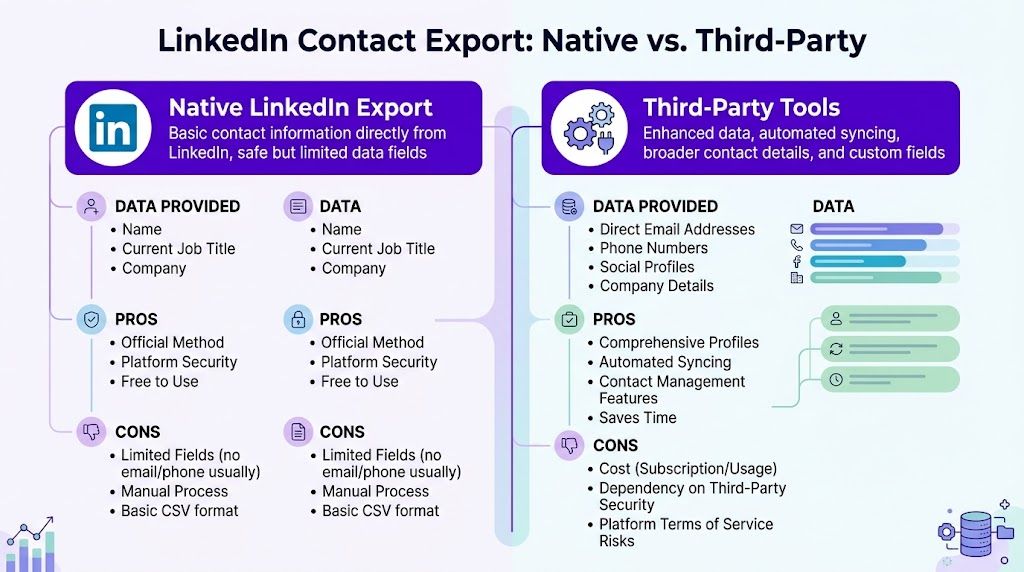
The native export is fine when you want your existing first-degree connections. It falls short when you need broader prospecting, more fields, or better enrichment.
That’s why people look at Sales Navigator, browser extensions, scraping tools, and contact databases. The problem isn’t that these tools exist. The problem is using the wrong one for the wrong job, or trusting one that asks for too much access.
Where the native method stops
The biggest limitation is scope. LinkedIn’s basic export only covers 1st-degree connections, and Sales Navigator exports are capped at 100 profiles per day for free searches and up to 2,500 monthly for paying users, based on the video source discussing LinkedIn export limits and third-party tools.
That’s one reason many sales teams move to outside tools. The same source says third-party scrapers can find emails in 40 to 60% of profiles and may produce better overall completeness than the native export, which it describes as around 50% data completeness.
Comparison of Contact Export Methods
| Feature | LinkedIn Native Export | Third-Party Tools |
|---|---|---|
| Connection scope | 1st-degree connections only | Can go beyond your direct network depending on tool |
| Data fields | Basic profile and shared contact data | Often includes more fields and custom export options |
| Safety | Highest, because it’s built into LinkedIn | Varies a lot by vendor and method |
| Setup | Simple | Usually requires filters, mapping, and review |
| Email coverage | Limited | Often better, but still uneven |
| Best use case | Backup, CRM import, warm network management | Prospecting, enrichment, larger outbound workflows |
Which tool type fits which use case
Not all alternatives do the same thing.
- Sales Navigator: Best when you want LinkedIn’s own paid environment, advanced search filters, and a more structured prospecting workflow.
- Browser extensions: Useful for quick profile capture, list building, and one-click exports while you browse.
- Standalone scraping tools: Better for teams that need scale, enrichment, tagging, and CRM sync.
- Contact databases: Better when LinkedIn is just one input and you need broader B2B data coverage.
If you’re comparing vendors in the broader sales data market, this list of Apollo.io alternatives is a practical place to assess how different platforms handle prospect data and workflow fit.
Safety checks before you use any outside tool
The safest rule is simple. If a tool asks for your LinkedIn password, walk away.
Use these checks:
- No password sharing: Browser session-based tools are still not risk-free, but password-based access is a harder no.
- Reasonable activity pace: Tools that hammer profile pages can trigger restrictions.
- Export transparency: You should know exactly what fields are being collected and where the data goes.
- Clear CRM sync behavior: Know whether the tool creates new records, updates old ones, or both.
- Consent-aware workflow: Don’t assume scraped contact details are permission for mass outreach.
The best third-party tool is the one that solves one narrow problem well and doesn’t create an account risk you’ll regret.
If you’re testing browser-based options for social workflows more broadly, the Chrome Social install page from Upvote Club is one example of a tool entry point that doesn’t revolve around buying fake engagement or handing over credentials.
Building Authentic Engagement With Your Network
A contact export helps you organize people. It doesn’t keep you visible to them.
That part comes from posting, commenting, replying, and showing up often enough that your name stays familiar. If you import contacts into a CRM and then disappear from LinkedIn for months, the spreadsheet won’t fix that. The relationship still cools off.
Your list is only as useful as your follow-up
Most professionals don’t need more connections. They need a repeatable way to stay relevant to the connections they already have.
That usually means:
- posting updates tied to your work
- leaving thoughtful comments on other people’s posts
- sending selective follow-ups, not bulk blasts
- using your contact list to remember who matters, not to automate every interaction
A simple example makes the point. If you sell into import and sourcing circles, you might save relevant contacts from LinkedIn, tag them by industry, and then stay active around topics they care about. A niche piece like Find Your Ideal Importer from China can be a useful content reference in that kind of outreach because it gives you something concrete to share when the topic fits.
What works better than a mass message
A lot of people export linkedin contacts and then make the same mistake. They send one generic note to everyone.
That usually fails because LinkedIn contacts are not one audience. They’re many small audiences. Former colleagues want a different message than buyers, referral partners, or event contacts.
Try a simpler model:
Sort by relationship
Create small groups such as past clients, peers, recruiters, media contacts, and warm prospects.
Match one topic to one segment
Share a post, article, update, or invitation that fits that group.
Use direct outreach sparingly
A short personal note beats a generic sequence every time with people who already know your name.
Stay active in the feed
Comments often reopen dormant relationships faster than inbox messages.
The LinkedIn comment activity page on Upvote Club is one reminder that comments matter because feed visibility often starts there, not in direct messages.
A contact list gives you memory. Consistent public activity gives other people a reason to remember you.
The practical habit
Keep one lightweight operating rhythm.
Review your exported list. Pick a small segment. Update a few records. Comment on posts from those contacts. Send a handful of direct messages where you have a real reason to reconnect. Repeat.
That rhythm is boring, which is why it works.
Privacy Ethics and LinkedIn's Policies
Exporting contact data is allowed through LinkedIn’s own tools. Using that data carelessly is where problems start.
Contact information is personal data. That means your job isn’t just getting the CSV. Your job is deciding what you should store, how long you should keep it, who on your team can access it, and how you’ll use it without turning a relationship list into a spam file.

The safe standard
A simple rule works well here. Use exported contact data for relevant, person-to-person communication, not generic blasts.
Good uses include:
- reconnecting with someone you already know
- updating your CRM with accurate relationship records
- keeping a backup of your own network
- sending a selective follow-up tied to a real prior interaction
Bad uses include:
- loading the full file into a bulk cold email tool with no filtering
- contacting people with no context just because their data was available
- storing exported files in shared folders with loose access controls
- using tools that scrape aggressively or ask for your account password
Policy and compliance judgment
LinkedIn’s official export route is the safest path because it’s part of the platform. Outside tools sit in a riskier zone and need more judgment.
Before using any tool or workflow, ask:
- Did this data come from my own connections or from broad scraping?
- Would this message make sense if the recipient asked why I contacted them?
- Does my team know where this file is stored and who can access it?
- Am I using this for a real relationship motion, or just because I can?
If your outreach would feel strange when explained plainly, don’t send it.
Keep your process conservative. Export what you need. Clean it. Store it securely. Reach out with context. Skip any service that wants full account access.
With our Upvote Club service, you can keep the network you’ve organized active through real engagement from verified human accounts across LinkedIn and many other platforms. We run on a community model, not bought likes. Members earn points by completing tasks for others, get 13 free points and 2 task slots at signup, receive 1 free task slot every 24 hours, and can use those points for their own posts without sharing passwords. If you want a practical way to support visibility after you export and organize your contacts, we’ve built Upvote Club to make that process safer, transparent, and community-driven.