Table of Contents
- Why You Might Need to Save a YouTube Video
- The trade-offs that matter
- The Official Method YouTube Premium Downloads
- How to use it
- Where Premium works well for creators
- The limits most articles gloss over
- Using Built-in iOS Tools Screen Recording and Shortcuts
- Screen Recording for quick captures
- Shortcuts for cleaner file export
- How to use the shortcut method
- Where Shortcuts works and where it breaks
- Third-Party Apps and Online Video Converters
- Why browser converters fail professionals
- What usually happens on iPhone
- The real trade-off
- Managing Your Downloads and Growing Your Channel
- A simple system that holds up
- Good folder categories for creators
- Keep copyright in mind while researching
- Understanding the Legal and Platform Rules
- Why this matters more for creators and brands
- The professional standard
- A good test before you save or reuse
- Frequently Asked Questions
- Can I download videos in 4K resolution
- How can I download my own YouTube videos
- Do these methods work for YouTube Shorts
- Will downloaded videos expire
- What’s the safest method overall
You’re on a flight, your client deck is open, and one slide depends on a YouTube clip that won’t load once the plane door closes. Or you’re reviewing a competitor’s edit style and need to watch the same intro sequence frame by frame on your iPhone during a commute. That’s usually when people start searching for how to download youtube videos on iphone and run into a mess of half-working apps, spammy converter sites, and advice that skips the legal side.
There are a few real options. One is official and simple. A couple are useful workarounds built into iOS. The rest are a gamble. If you’re a creator, marketer, editor, or researcher, the right method depends on one thing: do you just need offline viewing, or do you need an actual file in Photos or Files?
Why You Might Need to Save a YouTube Video
The need is usually practical, not casual.
A social media manager might need a product demo offline before a meeting. A video editor might want to pause on a transition, text animation, or thumbnail pattern and study it without relying on a weak signal. A journalist might save an interview for reference while traveling. A student might want a lecture available on a subway ride with no reception.

For creators, there’s another reason. Downloading or saving videos is often part of research. You collect examples of hooks, pacing, B-roll choices, caption styles, and calls to action. Then you compare them later in batches. That workflow is a lot easier when the video is available offline and organized instead of buried in browser tabs.
If your focus is YouTube growth after that research phase, YouTube engagement tools from Upvote Club are relevant once your own video goes live. But the saving step comes first. You need a reliable way to keep reference material on hand.
The trade-offs that matter
Not every method gives you the same result.
- Offline viewing only: YouTube Premium is the cleanest option if you just want to watch later.
- Actual video file: Shortcuts or screen recording can put something in Photos or Files.
- Fast but risky: Online converter sites may work, but they come with obvious security and reliability problems.
- Professional use: If you plan to review clips, sort them into folders, or compare them across projects, file access matters more than convenience.
The biggest mistake I see is picking a method before deciding whether you need a playable offline copy or a reusable file.
That one distinction saves a lot of wasted time.
The Official Method YouTube Premium Downloads
A common creator scenario looks like this: you’re boarding a flight, heading into a client meeting, or reviewing competitor videos between shoots, and you need reliable offline access on your iPhone. For that job, YouTube Premium is the official option. It saves videos inside the YouTube app for offline playback, which is less flexible than a normal file but much more reliable than web converters or sketchy download apps.
I recommend Premium first when the goal is simple viewing, reference watching, or keeping a shortlist of videos available without service. It is the safest route on iPhone because it stays inside YouTube’s own system. No pop-ups. No fake download buttons. No surprise redirects asking for permissions they should never need.
How to use it
- Open the YouTube app on your iPhone.
- Find a video that supports offline download.
- Tap Download below the video, or open the three-dot menu and choose Download.
- Select the video quality you want.
- Go to Library > Downloads to watch it offline later.
YouTube keeps these downloads inside the app’s own storage, not in Photos or Files. If you want YouTube’s current offline rules in one place, check YouTube offline download help for iPhone users.
Where Premium works well for creators
Premium is better than many creators expect, as long as you use it for the right part of the workflow.
- Reliable offline viewing: good for flights, commutes, backstage downtime, and bad reception on location.
- Cleaner research sessions: save examples for later review instead of leaving twenty tabs open and hoping your signal holds.
- Low security risk: no extra installer, no odd profiles, no converter site trying to bait taps.
- Fast on mobile: one tap from the YouTube video page, then the video is waiting in your Downloads tab.
For competitor research, Premium is useful during the review phase. It lets you watch hooks, pacing, title alignment, and retention tactics offline on your phone. What it does not do is give you a production asset.
That distinction matters.
The limits most articles gloss over
Premium does not give you a standard video file. You cannot move the download into Photos. You cannot drop it into Files, AirDrop it as an MP4, or import it straight into CapCut, iMovie, or Final Cut workflows on another device.
For creators and professionals, that changes how useful it is. Premium supports watching and note-taking. It does not support archiving source files, clipping sections for editing, or building a reusable swipe file stored in project folders. If your next step is to get clips from YouTube videos, Premium alone will not cover that part.
Use Premium when you need stable offline access and want the lowest-risk option on iPhone. Skip it if your real goal is file access, editing, or long-term library management outside the YouTube app.
Using Built-in iOS Tools Screen Recording and Shortcuts
If Premium doesn’t fit because you need a file outside the YouTube app, the next options are already on your iPhone. They’re not equal, though.
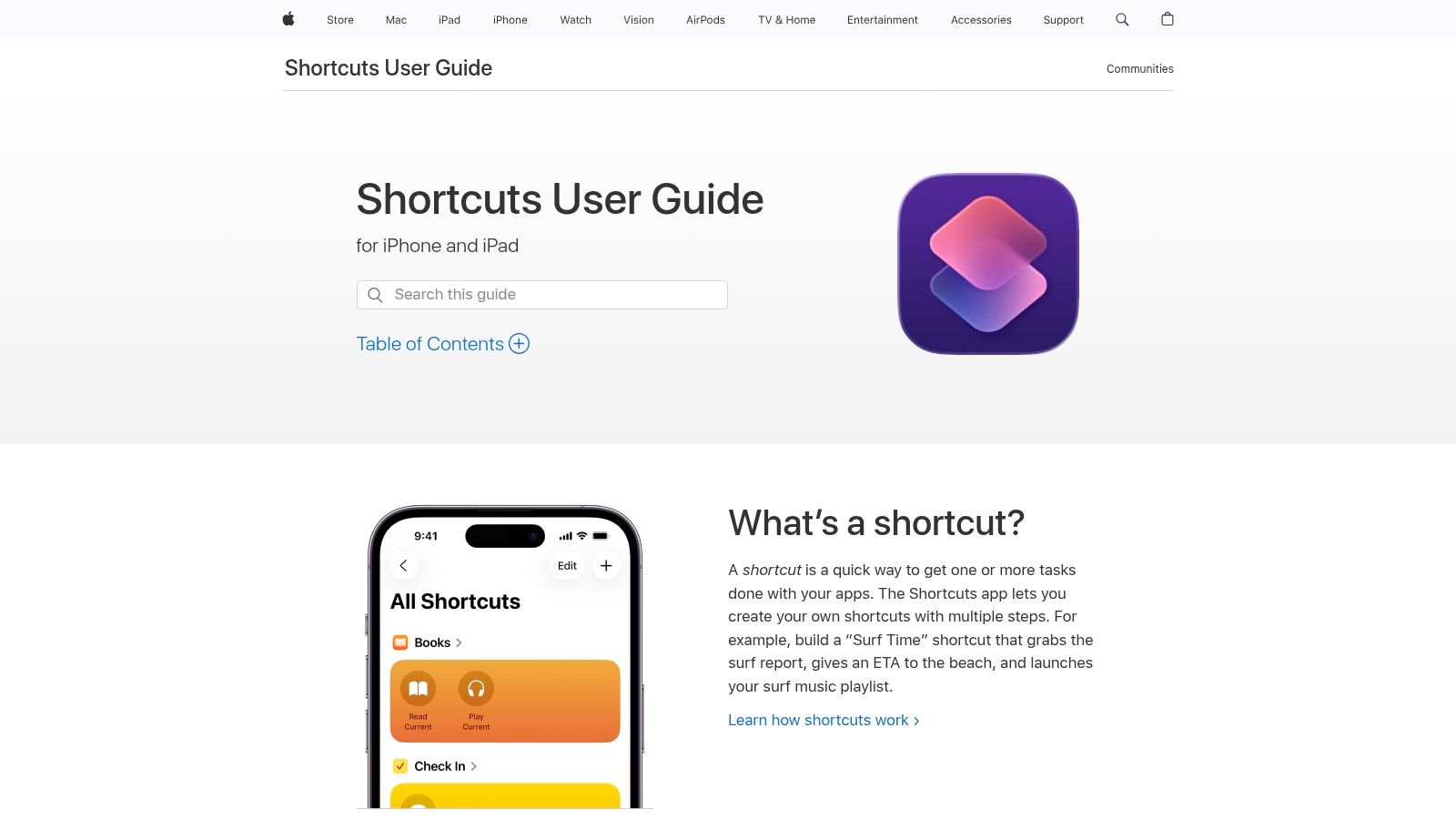
Screen Recording is universal. It works when almost nothing else does. Shortcuts is cleaner when it works, because it can export an actual MP4 instead of a recording of your screen.
Screen Recording for quick captures
This is the fallback I’d use for short clips, YouTube Shorts, or anything I need right now.
To set it up:
- Open Settings > Control Center.
- Add Screen Recording if it isn’t already there.
- Open the YouTube video and set it to full screen.
- Swipe into Control Center and tap the record button.
- Start playback.
- Stop the recording when the clip ends.
- Open Photos and trim the beginning and end.
The upside is obvious. It saves directly to your Photos app and needs no extra install. The downside is just as obvious once you’ve done it a few times.
- You may catch notifications: banners, low battery prompts, or accidental taps.
- Cleanup is manual: almost every recording needs trimming.
- It’s not a clean source file: it’s a recording of playback, not the original media.
Still, for fast reference captures, this method is dependable.
Shortcuts for cleaner file export
If you want a proper file in your gallery, Shortcuts is the better iPhone workaround.
The Safari-based shortcut method has an 85% success rate on recent iOS versions for exporting MP4 files to the gallery, according to Swappie’s referenced write-up. The common setup is to import a YouTube Downloader routine in the Shortcuts app, then run it from a copied YouTube URL. That same source notes it can take 2 to 5 minutes for a 10-minute video.
How to use the shortcut method
A typical flow looks like this:
- Open the Shortcuts app on iPhone.
- Import a YouTube Downloader shortcut, often from RoutineHub.
- Copy the YouTube video URL.
- Open the shortcut or trigger it from the Share sheet in Safari.
- Choose a format such as MP4.
- Save the result to Photos or Files.
This method is useful when you need a cleaner asset for clip review, annotations, or archive folders.
For creators who are studying edit structure and then want to get clips from YouTube videos for analysis or scripting, a clipping workflow can make more sense than storing full videos every time. That’s true when you only care about a hook, CTA segment, or one transition sequence.
Where Shortcuts works and where it breaks
Shortcuts feels elegant when it works. It also breaks more often than people admit.
A few common issues:
- Age-restricted videos: these often fail.
- Very large files: they’re more likely to stall or crash.
- iOS changes: a shortcut that worked last month may stop after a system update.
- Inconsistent support: not every YouTube URL behaves the same way.
Here’s a quick comparison:
| Method | Best use | Saves to Photos | Quality feel | Main drawback |
|---|---|---|---|---|
| Screen Recording | Fast clip capture | Yes | Good enough for review | Needs trimming, records UI mistakes |
| Shortcuts | Cleaner export | Yes or Files | Better for archive use | Can fail depending on iOS and video type |
A video walkthrough helps if you’ve never used iPhone automation before:
Don’t trust a Shortcut just because it worked once. Test it on a short public video first, then use it for the clips you care about.
That habit saves time. It also keeps your library from filling up with partial or broken exports.
Third-Party Apps and Online Video Converters
You are on your iPhone between meetings, trying to save a competitor’s product demo before it gets changed or taken down. A browser converter looks fast. On a work device, it is usually the method I trust least.
I have tested plenty of these sites over the years. The pattern is consistent. One page asks for permission it does not need, another opens fake download buttons, and a third sends the file through two or three redirects before anything saves. For creators and marketers building a research library, that trade-off is poor. You might get a file. You also waste time, lower security, and end up with messy downloads that are harder to track.
Why browser converters fail professionals
The biggest problem is reliability. These tools change domains often, break without warning, and behave differently in Safari, Chrome on iPhone, and in-app browsers. That makes them a weak fit for repeatable workflows such as competitor analysis, swipe-file collection, or archiving reference clips for a client brief.
Security is the second problem. Malware researchers at Kaspersky have documented how fake download pages and malicious redirects are commonly used to lure users into unsafe installs and phishing flows. That matches what shows up on many YouTube converter sites on mobile.
A quick personal rule has saved me trouble: if a converter page opens a second tab before giving me the file, I close it.
What usually happens on iPhone
The flow sounds simple, but the actual experience is messy:
- Paste the YouTube link into the site.
- Pick MP4 or audio.
- Sort through several buttons that all claim to be the actual download.
- Approve a download to Files.
- Move or share the file manually if you want it in Photos or a project folder.
That last step matters more than casual guides admit. If you save material for scripting, transcript review, reference edits, or hook analysis, random filenames in Downloads become a problem fast.
If your goal is audio only, such as grabbing a spoken section for note-taking or reference, a dedicated free video to MP3 converter is at least narrower in scope than a generic ripper site. I would still treat any unknown converter as disposable, not as part of a trusted workflow.
The real trade-off
Online converters win on speed only when they work on the first try. That is not enough for professional use.
For creator research, I would rather use a method that produces a predictable file, lands in the right folder, and does not put my phone through ad traps. If your team already depends on controlled systems for demos, launches, or product content, the same discipline applies here. Teams that already use GitHub growth workflows with Upvote Club usually understand this well. Clean inputs make later analysis easier.
Browser converters are fine for experiments on low-risk devices. They are a poor default for client work, channel research, or anything you may need to reference again next month.
Some people still use them occasionally. I do not recommend building your iPhone video library around them.
Managing Your Downloads and Growing Your Channel
Saving a video is only half the job. If you’re collecting examples for content research, you need a system for keeping them usable.
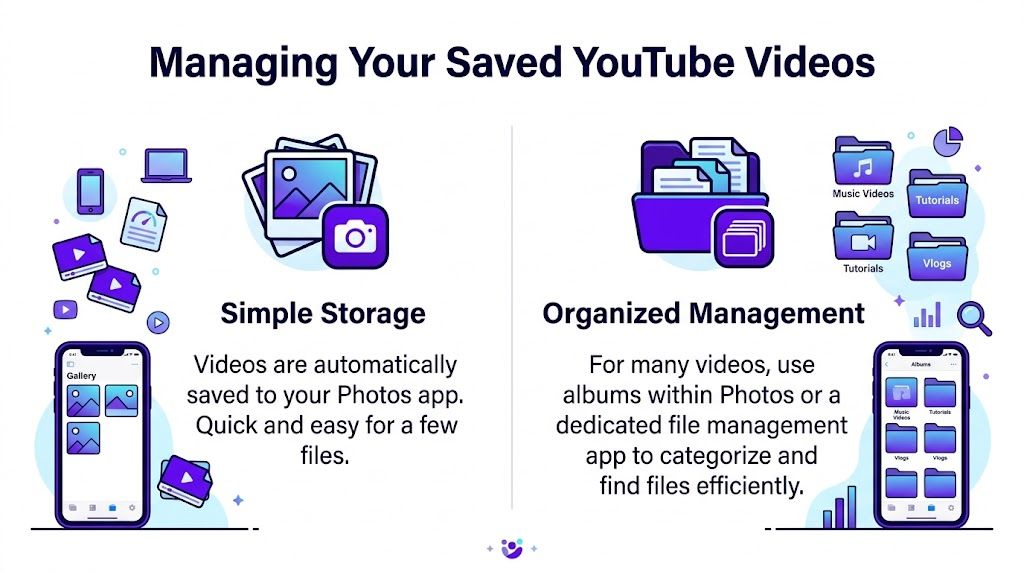
Most guides stop right after the file lands in Photos. That’s not enough if you’re reviewing hooks, ad formats, thumbnails, transitions, or competitor messaging across multiple projects. The friction starts later, when your camera roll turns into a pile of unlabeled clips.
A simple system that holds up
Guides often miss the storage side of this. For creators saving multiple high-quality videos for research, file size, access duration, syncing, and backup all become practical problems, as noted in this storage-focused reference.
The easiest fix is to separate casual saves from research assets.
- Use Photos for quick review: fine for a few clips you’ll delete soon.
- Use Files for long-term reference: create folders by topic, campaign, creator, or format.
- Rename files immediately: “hook-example-1” is better than a random timestamp.
- Keep notes nearby: a note in Apple Notes or your project manager helps explain why you saved the clip.
Good folder categories for creators
If you save videos often, sort by what you study, not by when you downloaded them.
A structure like this works well:
| Folder | What goes inside |
|---|---|
| Hooks | Opening sequences, first lines, first five seconds |
| Editing | Transitions, captions, pacing choices |
| Offers | CTAs, product demos, pricing reveals |
| Research | Competitor videos, market explainers, industry commentary |
This helps when you’re building your own content calendar. You’re not just storing videos. You’re building a swipe file.
Keep copyright in mind while researching
There’s a line between reference use and reuse.
If you save a video to study pacing or ad structure, that’s one thing. If you repost footage, cut it into your own content, or publish someone else’s work without permission, that’s a different situation entirely. Serious teams should treat downloaded clips as research material unless they have clear rights to use more.
A lot of creators also miss one practical point. If a downloaded file matters for an active project, don’t leave your only copy in the Camera Roll. Move it into Files or your broader content archive so it’s easier to find and less likely to get buried.
If your research turns into published content, distribution matters just as much as planning. For creators posting reels, screenshots, tutorials, and teasers across channels, Instagram growth support from Upvote Club becomes relevant after the content is live, not during the download step. The better your archive, the faster you can turn ideas into posts.
Workflow rule: Save less, label better, and keep only the clips you know you’ll revisit.
That one change keeps your phone from becoming an unusable pile of reference material.
Understanding the Legal and Platform Rules
Most download guides focus on mechanics and skip the part that matters most for professionals: the rules.
The core issue is simple. Many third-party methods exist, but YouTube’s Terms of Service prohibit downloading videos except through official means made available by YouTube. That’s why any workaround outside the app sits in a gray area at best and a direct terms violation at worst.
Why this matters more for creators and brands
This isn’t just about whether a trick works on iPhone.
A lot of guides recommend online tools without addressing the legal side. That creates liability for marketers, creators, and teams who may end up repurposing content they don’t own. This gap is called out directly in this copyright-focused reference, which notes that many guides skip the rules around repurposing, fair use, and proper attribution.
If you’re downloading for offline personal viewing, the practical risk may feel low. But once you use that material in client work, repost it, cut it into ads, or publish it elsewhere, you’re in a very different situation.
The professional standard
The safest rule is blunt:
- Watch with permission: official download options are the cleanest route.
- Research privately: keep downloaded examples for internal review, not reposting.
- Ask before reuse: if someone else owns the footage, get permission before publishing it.
- Treat fair use carefully: it depends on context and isn’t a blanket excuse.
Respecting copyright isn’t just legal hygiene. It’s part of being a professional creator.
That matters for teams building brands in public. If your channel grows by borrowing too freely from other people’s work, the damage isn’t only legal. It also hurts trust.
A good test before you save or reuse
Ask two questions:
- Am I saving this to watch or study privately?
- Am I planning to republish any part of it?
If the answer to the second question is yes, slow down and get clear permission or legal review. That extra step is a lot cheaper than cleaning up a rights dispute after something goes live.
Frequently Asked Questions
Can I download videos in 4K resolution
Sometimes, yes.
YouTube Premium allows downloads up to 1080p or 4K where available according to the verified YouTube Premium data provided earlier. Some Shortcuts-based methods also support higher-quality exports depending on the video and the shortcut you’re using. Screen recording won’t give you the same result because it captures playback from your screen, not the original source file.
How can I download my own YouTube videos
The best route is usually YouTube Studio on desktop, where creators can access their own uploaded files more directly. On iPhone, people often use workarounds when they need something immediately, but for your own source content, creator tools are the cleaner option.
Do these methods work for YouTube Shorts
Screen recording is the most dependable option for Shorts on iPhone because it doesn’t depend on whether a shortcut or converter correctly handles that specific URL format. Some shortcuts can work with Shorts links, but results vary.
Will downloaded videos expire
It depends on the method.
Videos saved with YouTube Premium are available for up to 29 days inside the app, as covered earlier. Videos saved to Photos or Files through screen recording or successful shortcut exports stay on your device until you delete them.
What’s the safest method overall
For security and consistency, YouTube Premium is the safest. For having a reusable file, Shortcuts is the better built-in workaround when it behaves properly. I’d treat random converter sites as a last resort, not a standard workflow.
If you’re turning saved research into posts and want real early engagement without bots, Upvote Club is built for that. With our Upvote.club service, you can create tasks for likes, comments, reposts, saves, and followers from verified human accounts across YouTube, Instagram, TikTok, X, Reddit, GitHub, LinkedIn, and more. We run on a community model, so users earn points by helping others first, then use those points to promote their own content. We also give new users 13 free points and 2 task slots, each social account is verified once with our emoji-based system, and users receive 1 free task slot every 24 hours. That means you can support your launch window with real participation, clear moderation, and no password sharing.