Table of Contents
- The Real Reason Your Instagram Stories Are Blurry
- Common Causes of Blurry Instagram Stories at a Glance
- Matching Instagram’s Technical Demands
- The Ideal Story Dimensions and Format
- File Type and Size Best Practices
- Adjusting Your Device and App Settings for HD Quality
- Flip This One Switch in Your Instagram App
- Ditch the In-App Camera
- Stop Sabotaging Your Quality Before You Even Upload
- Dial In Your Export Settings
- Your Pre-Upload Quality Checklist
- Making That Initial Hour Count
- A Genuine and Safe Way to Boost Your Content
- Common Questions About Blurry Instagram Stories
- Why Are My Videos Blurry on Instagram Stories but Not My Photos?
- Does Using Instagram’s Built-In Stickers or GIFs Make My Story Blurry?
- I Followed All the Steps but My Stories Are Still Blurry
Let's be honest: there's nothing more frustrating than spending time on a perfect photo or video, only to watch Instagram turn it into a pixelated mess the second you post it to your Story. If this sounds familiar, you're not alone. It's one of the most common complaints I hear.
The simple truth is that Instagram aggressively compresses your media to make sure Stories load fast for everyone, even on a weak connection. But in its quest for speed, it often sacrifices quality. The good news is you don't have to just accept blurry content. The problem is almost always a combination of Instagram’s compression engine and your own upload settings—both of which you can control.
The Real Reason Your Instagram Stories Are Blurry
You've probably noticed that blurry, low-quality Stories don't just look bad; they can actually hurt your engagement. It’s a real problem for creators and brands trying to put their best foot forward.
One report I came across showed that 68% of social media managers named blurry Stories as their biggest visual quality issue. Even more telling, 42% of them saw engagement drop by over 20% when their quality slipped. When you learn that Instagram's compression can shrink image files by up to 70% and videos by as much as 50%, it all starts to make sense. You can dig into the data yourself in this study on Instagram quality.
Most of the time, the issue boils down to just a few things: a spotty network connection, the wrong file settings, or dimensions that Instagram has to crop and mangle.
This quick decision tree can help you pinpoint where the problem lies—is it your network, your file, or your device?
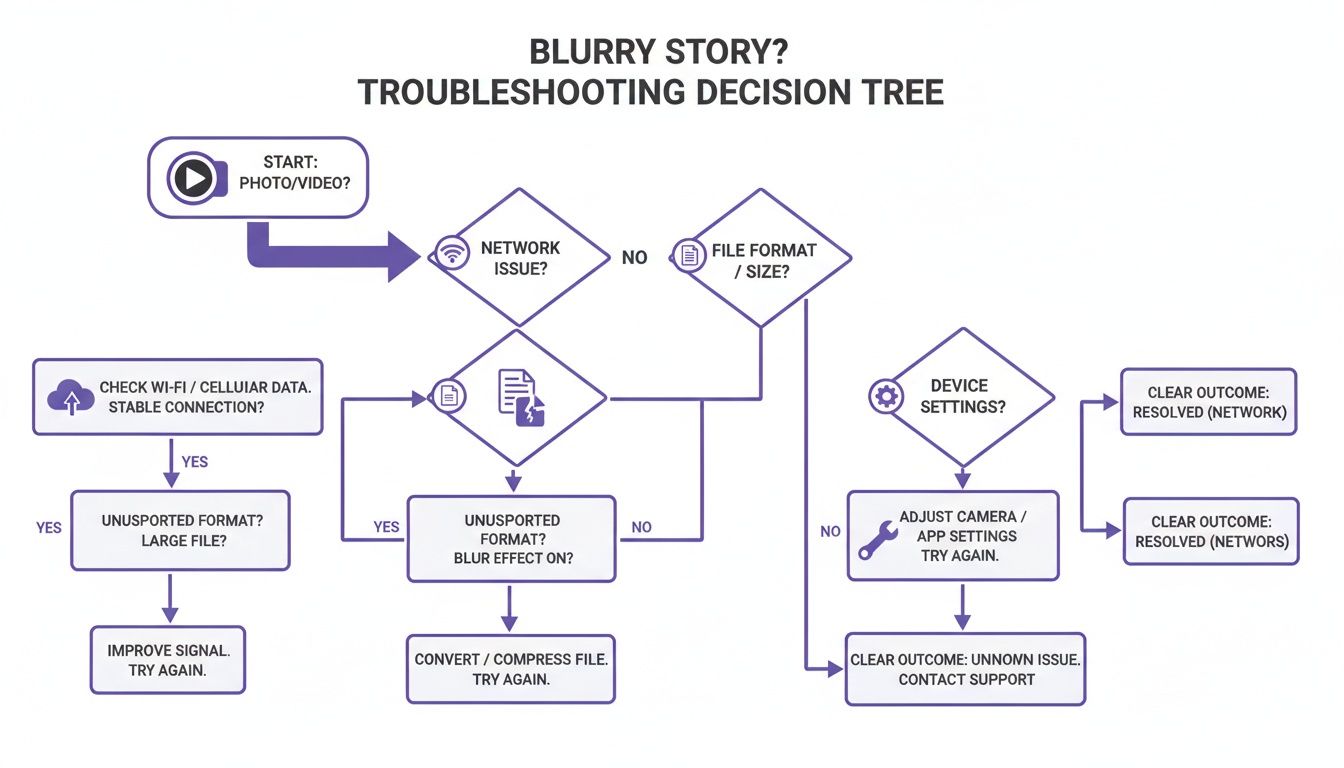
As you can see, the blurriness usually starts in one of three places. Once you figure out which one it is, the fix is often surprisingly simple.
Common Causes of Blurry Instagram Stories at a Glance
Before we go into the nitty-gritty fixes, this table gives you a quick overview of the most common culprits. I use this as a mental checklist whenever a Story doesn't look right.
| Problem Area | How It Creates Blurriness | Quick Fix |
|---|---|---|
| Network Connection | A weak or unstable Wi-Fi or cellular signal causes the upload to time out or send a lower-quality version. | Switch to a stronger Wi-Fi network or wait until you have a better cellular connection before posting. |
| File Resolution/Size | Instagram has to drastically downsize oversized files, leading to heavy-handed compression and artifacting. | Resize your photo or video to 1080×1920 pixels before you upload. |
| Aspect Ratio | Using a non-9:16 aspect ratio forces Instagram to crop or zoom in on your content, which degrades quality. | Crop your content to a 9:16 aspect ratio in your editing app. |
| In-App Effects | Overloading your Story with stickers, GIFs, and heavy filters can increase the file size and trigger more compression. | Use native Instagram features sparingly; add text or graphics in a third-party app before uploading. |
| App Settings | Your Instagram app might have a data-saving mode enabled that intentionally reduces upload quality. | Go to your app settings and enable "Upload at highest quality" (if available on your device). |
| Video Compression | Videos with a very high bitrate get compressed more aggressively by Instagram's servers. | Export your video with a bitrate between 3 and 6 Mbps for the best balance of quality and size. |
This table should help you quickly diagnose the issue most of the time. Now, let’s get into the specific, actionable steps you can take to fix these problems for good.
Matching Instagram’s Technical Demands
Uploading content that doesn’t quite fit Instagram's rules is one of the fastest ways to get a blurry Story. I see it all the time. The platform has its own, very specific preferences for size, shape, and file type.
If your photo or video falls outside these guidelines, Instagram’s algorithm takes over. It will automatically stretch, crop, or heavily compress your content to make it fit—and that’s what instantly tanks the quality.
Think of it like trying to jam a square peg into a round hole. No matter how you force it, the peg gets damaged. The same thing happens when you upload a wide landscape video or a square photo directly into your vertical Story.
The Ideal Story Dimensions and Format
To sidestep this destructive, automatic resizing, you have to prep your content before you upload. The single most important rule here is to match the 9:16 aspect ratio.
This vertical format is the native language of Instagram Stories. For the best possible clarity, you’ll want to aim for a resolution of 1080 pixels wide by 1920 pixels tall. Anything different is going to trigger Instagram’s compression hammer.
This isn’t just a hunch; the data backs it up. An Instagram transparency report showed that 52% of all Story uploads lose quality simply because of aspect ratio mismatches. A staggering 61% of casual users ignore the gold-standard 9:16 format, which forces the app to introduce that dreaded pixelation. It's a surprisingly common mistake, as you can discover in more detail from these Instagram quality stats.
Real-World Scenario: I once took this absolutely stunning, high-resolution photo on my new phone. It looked perfect in my camera roll. But the moment I uploaded it to my Story, it turned into a pixelated mess. The problem wasn’t the camera—it was the photo’s dimensions. It was a standard 4:3 image, and Instagram had to aggressively zoom in and crop it to fill the 9:16 screen, completely destroying its clarity.
File Type and Size Best Practices
Beyond just the dimensions, the file itself really matters. For the best results, you need to stick to these formats:
- For Photos: Go with JPEG. While PNGs are great for graphics that need a transparent background, they usually create larger files that Instagram compresses more aggressively.
- For Videos: Always use MP4 files with an H.264 codec. This is the exact format Instagram’s servers are built to handle, which means the smoothest processing with the least amount of quality loss.
File size is the final piece of the puzzle. Try to keep your photos under 30 MB and your 15-second video clips under 4 GB. Anything larger is an immediate red flag for Instagram’s algorithm, which will shrink it down without a second thought.
Getting these technical details right is the foundation for a crystal-clear Story. But once you have that perfect content, the next challenge is getting it seen. That initial burst of activity is what tells the algorithm your content is worth showing to more people. With our Upvote.club service, you can get that early engagement from real people to help your high-quality content perform better. You can read our guide on boosting your Instagram presence to see exactly how it works.
Adjusting Your Device and App Settings for HD Quality
It’s a frustratingly common problem: you shoot a great-looking photo or video, but the second you upload it to your Instagram Story, it turns into a blurry mess. More often than not, the culprit isn't some big mystery. The problem usually starts right on your phone, long before you even hit "upload."
Getting your device's native camera settings and Instagram's own internal settings aligned is the foundational step for clearer content. Let's walk through how to fix it.
Flip This One Switch in Your Instagram App
If you only make one change, make it this one. Instagram has a hidden feature designed to stop its algorithm from aggressively compressing your uploads, but it’s usually turned off by default. You need to turn it on.
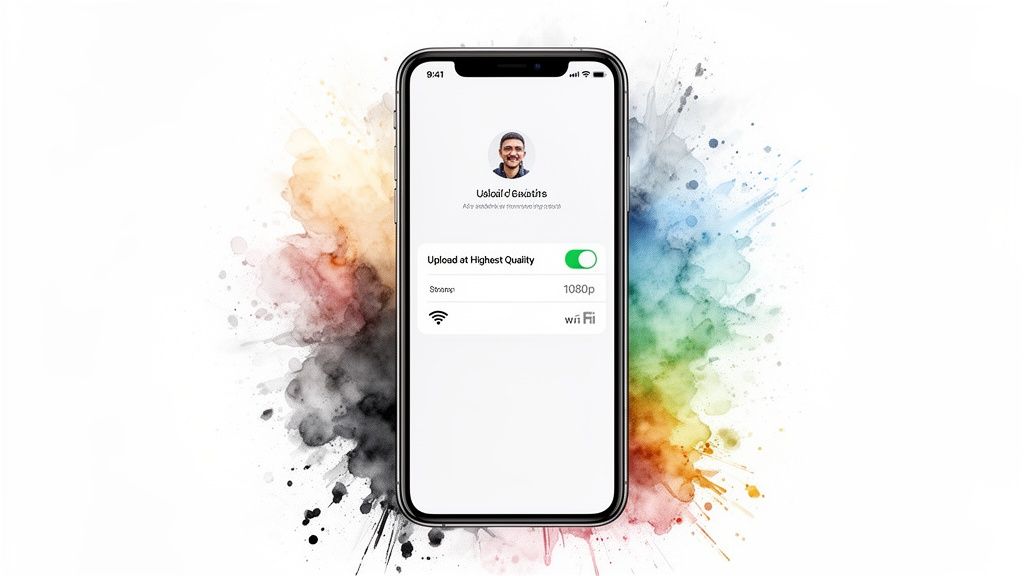
Head to your Instagram profile, tap the menu icon in the corner, and navigate to Settings and Privacy > Data usage and media quality. You'll see an option for "Upload at highest quality." Toggle that on.
Seriously, this is non-negotiable for anyone who cares about their Story quality. It tells Instagram you're on a stable connection and you want to prioritize quality over saving a little data.
Ditch the In-App Camera
The Instagram camera is great for spontaneous, in-the-moment clips, but it's not your friend when it comes to quality. It applies its own layer of compression while you're recording. For consistently sharp results, always use your phone's native camera app first, then upload the file from your gallery.
Before you start shooting, though, you need to go into your phone’s camera settings to make sure you’re not accidentally shooting in a format that Instagram will crush.
- For Videos: The sweet spot is 1080p at 30 frames per second (fps). I know it’s tempting to shoot in 4K, but those files are massive. Instagram will shrink them down hard, and that's when you get that blocky, pixelated look.
- For Photos: Just make sure your camera is set to a standard, high-quality format like HEIC or JPEG.
One of the most overlooked steps is simply optimizing your lighting conditions before you even press record. Good light means less digital noise, which gives Instagram’s compression algorithm much less to struggle with, resulting in a cleaner final image.
Your internet connection is your secret weapon. Instagram is smart—it detects your network speed. If it senses a slow or spotty connection, it will automatically apply stronger compression to make sure the upload finishes. Always try to upload over a strong Wi-Fi signal instead of cellular data.
Once you’ve mastered these settings, you'll see a massive improvement in your Story quality. If you're looking to apply these principles of high-quality content elsewhere, you might find our guide on how to grow your YouTube channel helpful. It touches on many of the same strategies for creating content that stands out.
Stop Sabotaging Your Quality Before You Even Upload
So you’ve shot a perfect 1080×1920 video, but by the time it hits your Stories, it looks like it was filmed on a flip phone. What gives? More often than not, the problem happens between shooting and uploading.
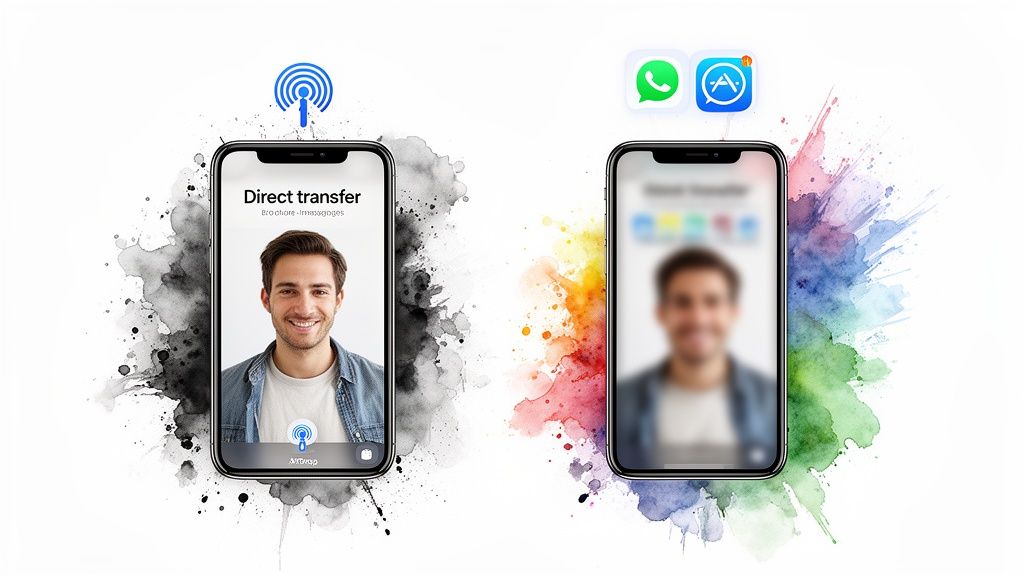
If you’ve ever sent a video to a friend on WhatsApp or Messenger before posting it, you’ve already fallen into the trap of “double compression.” It’s a classic mistake, and I see it all the time.
First, the messaging app crushes your file to save data. Then, when you upload that already-degraded video to Instagram, its servers compress it again. That one-two punch is a guaranteed recipe for a blurry mess and a major reason people wonder why their IG stories are so blurry.
To dodge this, you have to transfer your files without letting other apps get their hands on them.
- For Apple users: AirDrop is your best friend. It’s fast, wireless, and keeps the original file quality perfectly intact.
- For Android or moving files to a computer: A direct USB cable transfer is old-school but foolproof. You can also use a cloud service like Google Drive or Dropbox, but be sure you’re downloading the full, original file, not just a compressed preview.
Dial In Your Export Settings
Your editing app’s export settings are your final chance to protect your quality. It doesn't matter if you're using Canva, CapCut, or Adobe Premiere Rush; using the default presets can undo all your hard work.
Never trust the default "High Quality" setting. Instead, you need to tell the app exactly how to prepare your file for Instagram by customizing the export. This means paying close attention to the resolution, frame rate, and bitrate so Instagram’s algorithm doesn’t have to guess and make harsh adjustments on its own.
I once spent a whole afternoon editing a video, only to see it turn into a pixelated soup on my Stories. I couldn't figure it out. The culprit? My editing app’s default export setting created a huge file with a variable bitrate. Instagram’s servers took one look, panicked, and compressed it into oblivion. Lesson learned the hard way: always, always use custom export settings.
Your Pre-Upload Quality Checklist
The best way to get consistently sharp Stories is to build a solid pre-upload routine. It becomes second nature after a while. Before you even think about hitting that "Share" button, run through this quick mental checklist.
- Is my file really 1080×1920? Double-check those dimensions.
- How did this file get on my phone? Was it through AirDrop, a cable, or a lossless cloud download?
- What were my export settings? Is the video an MP4 (H.264) file with a bitrate somewhere between 3-6 Mbps?
- How's my connection? Am I on a strong, stable Wi-Fi network? Never trust a weak signal for uploads.
Of course, even with perfect quality, your story needs that initial burst of engagement to get seen by more people. We actually built our service, Upvote.club, to solve this exact problem. Our platform is not about buying engagement—it's about participating in a community. While other services let you buy likes, our Upvote.club service operates on a community-based model where we help each other grow.
So you’ve done all the hard work. Your photo or video is sized perfectly to 1080×1920 pixels, you’ve nailed the file format, and you uploaded it using a rock-solid connection. The result is a crisp, gorgeous Story. But then… crickets. Why aren’t your amazing IG Stories getting the views they deserve? The problem isn't your quality; it's the Instagram algorithm.
Instagram gives priority to content that gets people talking right away. That first hour after you post, what we call the "Golden Hour," is everything. A rush of early likes and comments sends a powerful signal to the algorithm that your Story is worth showing to more people. If that initial buzz doesn't happen, even the most stunning content can get lost in the noise.
Making That Initial Hour Count
This is where strategy comes into play. Once your Stories look professionally sharp, the real challenge is getting them in front of an audience that will connect with them. Knowing how to improve social media engagement is the key to growth. You need real people to see and react to your work.
We built our service, Upvote.club, to solve this exact problem. We get it—kicking off that first wave of interaction is tough. Our platform is a community of real, verified users who are all helping each other grow. With our service, you are not buying fake engagement; it's about earning it by being part of a community.
Here’s the simple breakdown of how it works with our Upvote.club service:
- When you register with us, we give you 13 free points and 2 task slots to get started.
- You earn more points by doing small tasks for other members, like dropping a like or a comment.
- Then, you use those points to create your own tasks, asking our community for engagement on your content.
- This creates a self-sustaining cycle of real interaction from actual human accounts.
For instance, right after you publish that perfectly clear Story, you could use our service and create a task for it to get likes. Those initial interactions help you win over the algorithm during that make-or-break first hour. If you want to see exactly how it works, you can check out how to get more Instagram likes and see how our community can give you that boost.
A Genuine and Safe Way to Boost Your Content
We made Upvote.club with safety and realness as our foundation. There are zero bots, and we have strict moderation to make sure every like and comment is from a real person. We will never ask for your passwords; instead, we use a unique emoji-based verification system to check accounts and keep everything secure.
With our Upvote.club service, you can get the initial activity needed to make your high-quality content stand out. We provide a platform for you to join a community of creators helping each other succeed, ensuring the hard work you put into creating sharp, clear Stories gets the attention it deserves.
When you sign up, you get a handful of free points to create your first task. It's a no-risk way to see the results for yourself. By helping other people in our community, you earn the ability to promote your own stuff. It’s a powerful technique, similar to what big influencer agencies do, but we’ve opened it up for everyone.
Common Questions About Blurry Instagram Stories
Even after you've followed all the best practices, you might still run into specific situations where your Stories just don't look right. It can be incredibly frustrating. Let's walk through some of the most common questions I hear from other creators and get you some clear, practical answers.
Why Are My Videos Blurry on Instagram Stories but Not My Photos?
This one comes up all the time, and the simple answer is file size. A 15-second video clip, even a simple one, is a much heavier file than a single high-resolution photo.
Because of this, Instagram’s servers have to work a lot harder to process and compress that video. The goal is to make sure it plays smoothly for everyone, regardless of their internet connection, so the compression is aggressive. A single 4K video clip is just massive, and Instagram will shrink it down, often leading to that dreaded pixelated look.
To get around this, try recording in 1080p instead of 4K, and stick to 30 frames per second (fps). Also, make sure your final video is an MP4 file with the H.264 codec—that’s the format Instagram’s system handles most efficiently.
Does Using Instagram’s Built-In Stickers or GIFs Make My Story Blurry?
Yes, it absolutely can. Think of every interactive element you add—GIFs, music stickers, polls, even fancy text styles—as another layer that Instagram has to process.
A single, simple text box is usually fine. But when you start piling on multiple animated GIFs and interactive stickers, you force Instagram to re-compress the entire Story.
This "re-squashing" process almost always degrades the quality of your original image or video. If maximum clarity is your main goal, it’s often better to add important text or graphics in a separate editing app before you upload. Use Instagram's native features in moderation.
I Followed All the Steps but My Stories Are Still Blurry
If you’ve already dialed in your camera settings, nailed the dimensions, and used the right export format, the final culprit is almost always your internet connection.
Instagram’s upload system is smart; it can detect your upload speed in real-time. If it senses a slow or unstable network, it will automatically apply much stronger compression just to get the file uploaded faster.
Always try to upload using a strong and stable Wi-Fi connection rather than cellular data. If Wi-Fi isn't an option, at least wait until you have a full 5G or LTE signal.
One last trick I’ve found helpful is to apply a tiny bit of sharpening to your image or video in an editor like Lightroom or Snapseed before you upload. A subtle sharpening effect can help counteract the softening that Instagram’s compression naturally introduces.
Now that your visual quality is sorted, getting engagement on those sharp Stories is the next step. You might find our tips on how to get more Instagram comments useful for that.
With Upvote.club, you can get your crystal-clear Stories the attention they deserve. We built our service to help you get that important initial engagement from real people right after you post. By participating in our community, you earn points for helping others, which you can then use to create tasks for your own content. Join today to see how authentic interaction can make a real difference for your growth. Learn more at https://upvote.club.