Table of Contents
- Your LinkedIn Banner Is More Than Just a Background
- What a strong banner usually does
- LinkedIn Banner Requirements and Best Practices
- LinkedIn Banner Specifications
- The safe layout that saves you trouble
- File choice matters more than people think
- Changing Your Personal Profile Banner Step-by-Step
- On desktop
- On mobile
- A workflow that avoids redoing the banner
- How to Update a LinkedIn Company Page Banner
- What changes on a company page
- Step-by-step for company pages
- When to use a slideshow instead of a static banner
- Designing a Banner That Builds Your Brand
- Four design choices that usually work
- What to include and what to skip
- Common Banner Mistakes and Quick Fixes
- Blurry banner after upload
- Text cut off on mobile
- Banner looks fine, but the profile photo blocks the design
- Upload fails or the file won't save
- Frequently Asked Questions About LinkedIn Banners
- How often should I change my LinkedIn banner
- Can I use a GIF or video for my LinkedIn banner
- Where can I create a LinkedIn banner
- Why does my banner look good on desktop but bad on my phone
You open a LinkedIn profile to check someone out before a meeting, a hiring screen, or a pitch. The headline is decent. The profile photo is fine. Then the top of the page hits you with the default blue banner. It doesn't ruin the profile, but it does make it feel unfinished.
That's why people search for how to change linkedin banner right before they need their profile to look sharper. They've changed roles, launched a service, started posting more, or finally decided their profile shouldn't look abandoned.
The fix is quick. The part that usually causes problems isn't the upload itself. It's getting the banner to look right on both desktop and mobile, without blurry edges, hidden text, or a crop that chops off the one thing you wanted people to read.
Your LinkedIn Banner Is More Than Just a Background
A LinkedIn banner does more than fill space behind your profile photo. It tells visitors whether your profile is active, current, and intentional. A blank or default banner suggests no one has touched the page in a while. A custom one can frame what you do before anyone reads your headline.
That matters for job seekers, founders, consultants, recruiters, and in-house marketers. If someone lands on your profile from a comment, post, or search result, the banner is one of the first visual cues they process. It can support your role, niche, location, offer, or brand style in a single glance.
For graduates and early-career professionals, this is part of basic profile hygiene. If you're also working on outreach and relationship-building, the advice in networking on LinkedIn for finance graduates is a useful companion because your banner works best when the rest of the profile is active too.
A lot of people overthink the design and underthink the function. The best banner usually isn't the fanciest one. It's the one that loads cleanly, reads well, and still makes sense when viewed on a phone.
A good banner should support the profile, not compete with it.
There's also a practical reason to update it. LinkedIn banner images need the right size and layout to avoid awkward crops, and a clean custom banner can help your profile stand out. LinkedIn banner guidance commonly points to the recommended size of 1584 x 396 pixels, and if you're working on your profile more broadly, LinkedIn growth tools and ideas can give you extra context on how people build activity around a polished account.
What a strong banner usually does
- States your lane clearly. It hints at your work, market, or specialty.
- Matches the rest of the profile. The photo, headline, and banner feel like they belong together.
- Stays readable on mobile. Text and logos don't get clipped.
- Avoids filler visuals. Generic skyline photos and random stock graphics rarely help.
LinkedIn Banner Requirements and Best Practices
Before you upload anything, get the file right. Most banner problems start before LinkedIn ever sees the image. People export the wrong size, place text too close to the edge, or upload a file that looks sharp in Canva but not on the live profile.
The most important spec is simple. The recommended LinkedIn banner size is 1584 pixels wide by 396 pixels high, and the platform supports JPG, GIF, and PNG with an 8MB file size limit. Profiles with customized banners receive 11 times more views than those with default images, according to the verified data tied to this LinkedIn banner guide reference.
LinkedIn Banner Specifications
| Attribute | Recommendation |
|---|---|
| Dimensions | 1584 x 396 pixels |
| Aspect ratio | Wide banner format |
| File size limit | Up to 8MB |
| Supported formats | JPG, GIF, PNG |
| Best use case | Clean, high-resolution image prepared before upload |
That handles the technical minimum. It doesn't solve the actual display issue, which is cropping.
The safe layout that saves you trouble
Desktop and mobile don't show the banner the same way. That's why a design that looks centered on your laptop can look cramped or sliced on your phone. The practical fix is to keep your main text, logo, and any callout away from the edges.
Use a safe area in the center and leave breathing room around all sides. Keep the lower-left area cleaner too, since the profile photo overlaps part of the banner on personal profiles.
Practical rule: If text needs to be read, don't place it near the far left or right edge.
What usually works:
- Centered value statement. Best for consultants, coaches, and creators.
- Right-weighted layout. Good when the profile photo covers part of the left side.
- Image-first background. Works if the image supports your role and doesn't need explanation.
What usually fails:
- Tiny text lines that only look readable in the design tool.
- Busy stock photography behind your words.
- Edge-to-edge logos that get clipped on smaller screens.
- Low-quality exports from screenshots or stretched images.
File choice matters more than people think
If your banner includes text, shapes, or logos, PNG is often the safer pick. If it's mostly photography, JPG can work well too. GIF is supported, but for most profiles a static banner is simpler and more predictable.
Prepare the file before upload. Don't rely on LinkedIn to fix sizing for you. It can display the image, but that doesn't mean it will display it well.
Changing Your Personal Profile Banner Step-by-Step
Users can typically swap a banner in under a couple of minutes. Verified data tied to this LinkedIn workflow reference says the full process has an 84-second average completion time. The same source also notes that, after LinkedIn's 2021 visual-profile update, pages with customized banners gained a 15% greater algorithmic boost, which correlated with a 30% uplift in post impressions for active content creators.
That's the upside. The friction point is usually mobile.

On desktop
Desktop is still the easiest way to change a personal profile banner because you get a larger preview and finer control while positioning the image.
Open your profile
Log into LinkedIn and click your profile photo or name to reach your profile page.Click the pencil or camera icon on the banner area
LinkedIn places the edit control directly on the banner block.Choose the option to change the photo
Upload the new image from your computer.Adjust the positioning carefully
If LinkedIn gives you drag or crop controls, use them. Don't assume the automatic framing is right.Apply the change
Save it, then reload your profile and inspect the live version.
Desktop is better for text-based banners because you can spot spacing problems faster. If your banner includes a tagline, certification line, or role statement, use desktop for the first upload even if you normally manage LinkedIn on your phone.
On mobile
Mobile works, but it's less forgiving. The app is fine for quick swaps, not always for precise layout decisions.
- Open the LinkedIn app and go to your profile
- Tap the banner edit icon
- Select your new image from the camera roll or files
- Check the crop frame slowly
- Save, then view the full profile again
The problem with mobile isn't whether you can change the banner. You can. The issue is that the preview can hide layout problems until after the upload.
If your banner includes text, upload it on desktop first, then use your phone only to verify how it renders.
Here's a quick visual walkthrough if you want to compare the clicks before doing it yourself.
A workflow that avoids redoing the banner
Use this order if you want the fewest mistakes:
- Prepare the image first in Canva, Kapwing, or your design tool of choice.
- Upload on desktop for better positioning.
- Open your profile on mobile immediately after saving.
- Check the top, sides, and photo overlap area before calling it done.
That extra phone check is what most quick tutorials skip, and it's where many banner issues show up.
How to Update a LinkedIn Company Page Banner
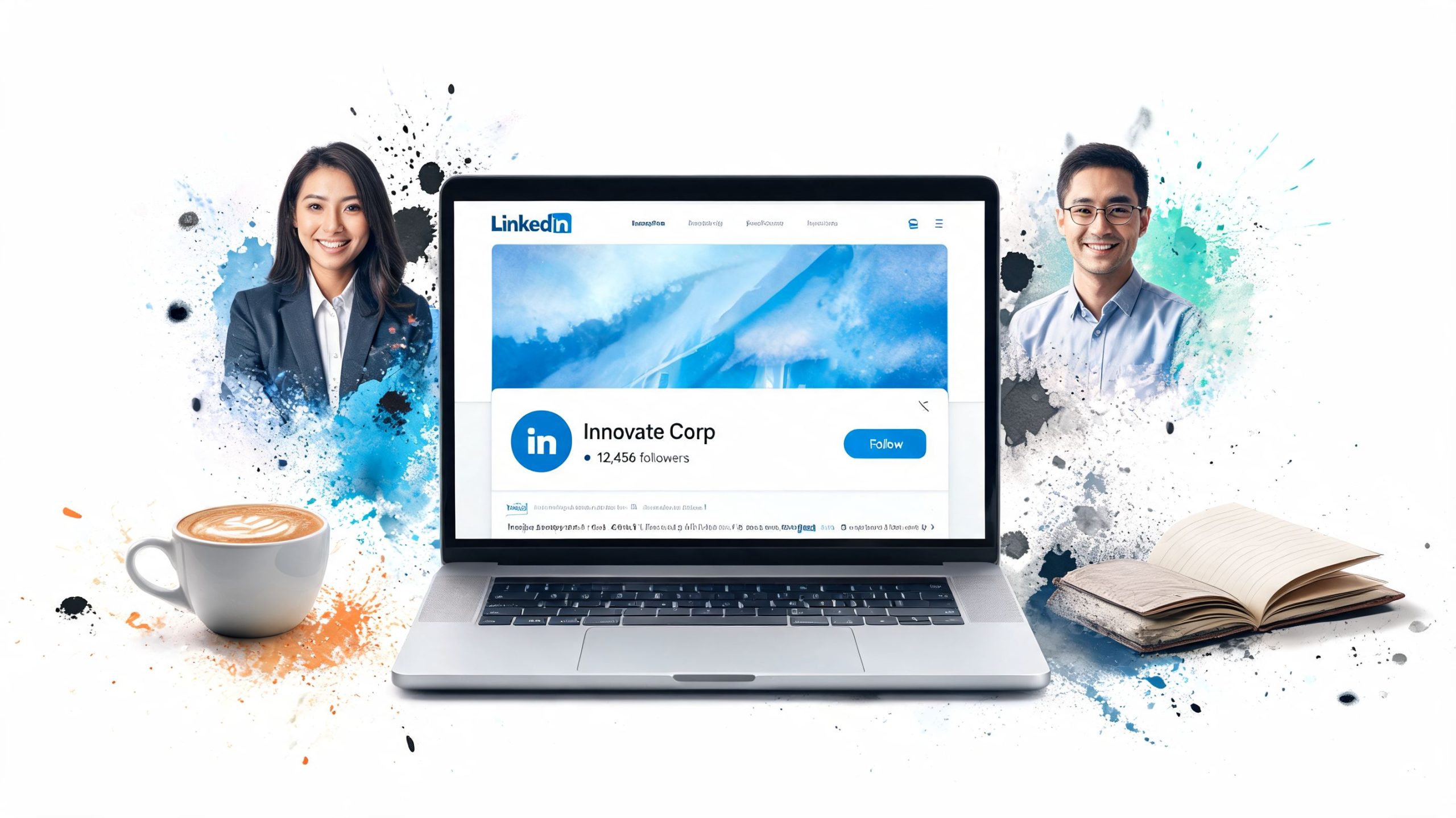
Company pages are similar to personal profiles, but the working context is different. You need admin access, and the desktop editor is usually the better option because page tools tend to be fuller there.
For company pages, the verified data tied to this company page banner reference notes that the desktop editor often provides more features than mobile, including AI-based suggestions and, for Premium accounts, the ability to create an image slideshow. The same source recommends 8-bit PNG for logos or transparent elements to avoid JPEG artifacts.
What changes on a company page
A company page banner has a broader job than a personal one. It may need to support brand recognition, campaigns, hiring, product messaging, or event promotion. That usually means more stakeholders, more text pressure, and more reasons to keep the design simple.
Use desktop if you can. It's easier to compare the banner against the company logo, page colors, and the rest of the page layout.
Step-by-step for company pages
Go to the company page you manage
Make sure you're logged into the account with page admin rights.Enter the admin view or page editing controls
LinkedIn places page controls in the admin interface, not in the same spot as a personal profile.Find the banner or cover image area
Click the edit option attached to that visual section.Upload the new banner file
Use a prepared file, not a rough draft exported at the last minute.Review how the logo sits against the banner
Transparent PNG files can help here, since logos and overlays often look cleaner.Save and inspect the live page
Check both desktop and mobile after publishing.
When to use a slideshow instead of a static banner
If your page has Premium features and slideshow access, it can work for a brand with multiple messages to rotate. It's less useful if the page already feels busy.
A static image is usually stronger when:
- You want one message such as hiring, a positioning line, or a category claim.
- Your logo needs clean contrast against a stable background.
- Your team wants consistency across employee profile assets.
A slideshow makes more sense when you want to cycle through event promos, product lines, or campaign visuals. If your goal is follower growth on the page itself, a clearer profile setup plus active posting often matters more than extra visual motion. For teams focused on that side, LinkedIn follower growth support can be part of the wider plan.
Designing a Banner That Builds Your Brand
Changing the image is the easy part. Choosing the right banner is where people get stuck.
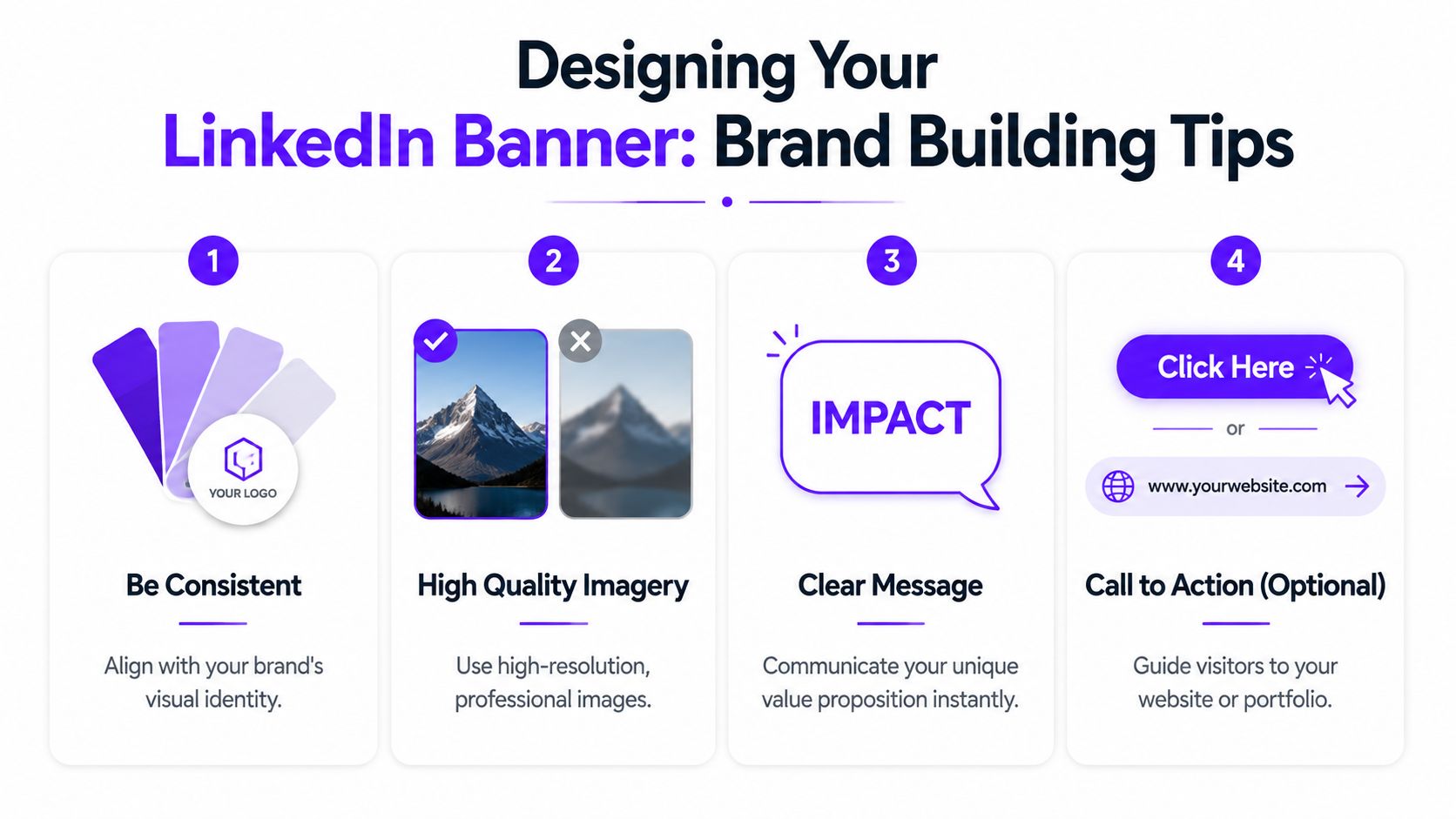
The best banners are usually restrained. They don't try to explain your whole career. They give enough context for the visitor to understand what kind of profile they're on and what to expect next. That might be a clean statement of what you do, a simple visual identity, or a background image tied to your work.
Four design choices that usually work
Keep the message short
A banner isn't a mini website header. If you add text, keep it to one main idea. Your profile headline and About section can carry the detail.
Short examples that work better than crowded copy:
- Product marketer for B2B SaaS
- Helping founders build clearer messaging
- Data analyst in fintech
- Hiring engineers across EMEA
Match your existing visual identity
Your banner should feel connected to your photo, headline, and recent posts. If your profile picture is formal and your content is clean and business-focused, a loud neon graphic usually feels out of place.
This is one reason brand consistency matters beyond logos. Build Emotion's brand awareness advice is useful here because it frames consistency as repeated recognition, not just visual decoration.
Use contrast that survives small screens
Light gray text on a pale background often looks nice in the editor and weak on an actual phone. Strong contrast wins. Dark text on a light field, or light text on a darker field, is easier to read fast.
Your banner should still make sense when someone glances at it for two seconds on a small screen.
Leave space
White space does real work in banner design. It gives the profile room to breathe and stops the top of the page from looking cluttered.
What to include and what to skip
A practical checklist helps here:
- Use your role, niche, logo, product category, or a single brand phrase.
- Use a photo only if it's relevant and clean.
- Skip long mission statements.
- Skip dense icon clusters.
- Skip thin fonts that disappear on mobile.
For personal brands, I've found that simple text-plus-color banners outperform overdesigned ones in day-to-day use because they age better. You won't need to rebuild the whole file every time your focus changes.
If your LinkedIn strategy includes active networking, posting, and turning profile views into conversations, LinkedIn connection support fits after the visual setup is right. The banner gets attention. The rest of the profile has to carry it.
Common Banner Mistakes and Quick Fixes
Most LinkedIn banner problems come down to four things. Wrong size, wrong placement, wrong file type, or rushing the final check.
The good news is that each one has a fast fix. Verified guidance tied to this Kapwing LinkedIn banner reference notes that LinkedIn auto-resizes non-compliant images, which can reduce visual quality by up to 30%. The same source recommends keeping a 20% safe area on all sides for important text and logos.
Blurry banner after upload
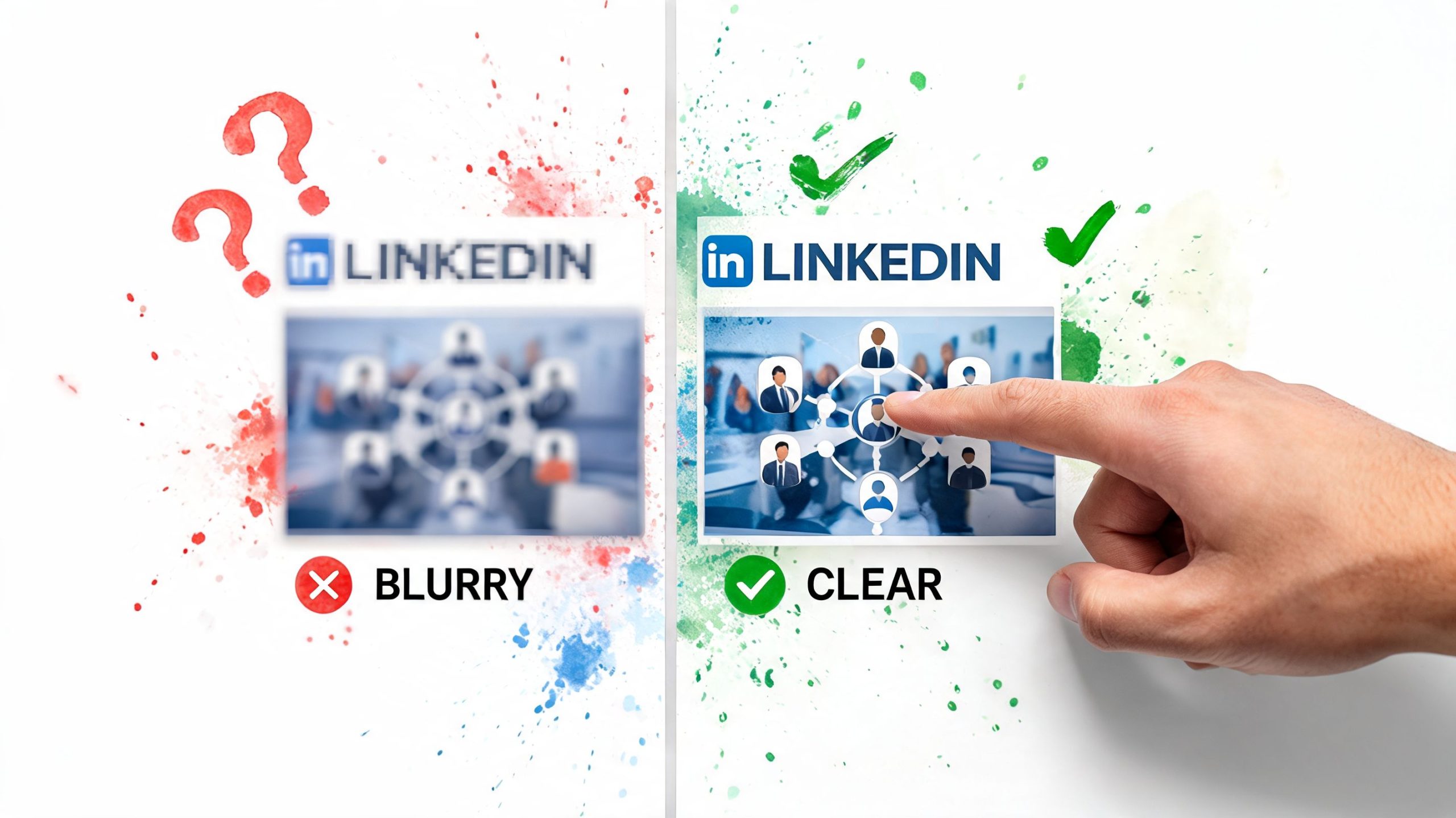
This usually happens when the original file wasn't built to the right dimensions or was exported poorly. Screenshots are common offenders.
Fix: Rebuild or resize the image to the proper banner dimensions before uploading. Export from Canva, Kapwing, Photoshop, or your design tool directly, rather than grabbing the design with a screenshot.
Text cut off on mobile
This is the most common layout mistake. The desktop view can make a banner look centered while mobile crops more aggressively.
Fix: Pull all text, logos, and fine detail inward. Respect the safe area and avoid edge placement.
Banner looks fine, but the profile photo blocks the design
People forget the profile image overlaps part of the banner on personal profiles. If your text sits low and left, the profile photo can cover it.
Fix: Move key elements toward the center or right side. Keep the lower-left area lighter and less busy.
Upload fails or the file won't save
That usually points to file size or format issues.
Fix: Check that your file is in a supported format and below the upload limit. If the app behaves strangely, try the same upload on desktop browser.
A banner isn't finished when it uploads. It's finished when it looks right on the live profile.
Frequently Asked Questions About LinkedIn Banners
How often should I change my LinkedIn banner
Change it when your role, offer, campaign, or focus changes. If none of that has changed, review it every so often to make sure it still matches your current profile and content. A stale banner isn't always wrong, but an outdated one is.
Can I use a GIF or video for my LinkedIn banner
LinkedIn supports GIF as a file format in the verified banner specs noted earlier, but for most users a static image is easier to control. Video-style movement isn't the default approach for standard personal banners, and static designs are usually safer for readability.
Where can I create a LinkedIn banner
Canva and Kapwing are the most practical options for fast banner creation. Use a template only as a starting point. You'll still need to adjust spacing so it works with your own profile layout.
Why does my banner look good on desktop but bad on my phone
Because mobile-first banner optimization is still underexplained in most tutorials. Verified guidance in this mobile banner optimization reference points out that what looks correct on desktop may be poorly cropped in the app, and that checking the banner on a smartphone is a critical final step.
If your main goal is getting more activity around your profile after the visual cleanup, LinkedIn likes support can fit into the posting side of your workflow.
With our Upvote Club service, you can build real engagement across LinkedIn and other social platforms through a community model, not bots. We run on verified human participation, strict moderation, transparent task completion, and a points system where members help each other grow. New users get 13 free points and 2 task slots, then can earn more by completing tasks for others, with 1 free task slot every 24 hours. We don't ask for passwords, and account verification uses a unique emoji-based method. If you want a cleaner LinkedIn profile to do more than just look good, we've built Upvote.club to help turn that setup into steady, authentic interaction.