Table of Contents
- Why LinkedIn Carousels Are a Game Changer
- Why swiping changes performance
- What works and what doesn't
- Preparing Your Carousel File for Maximum Impact
- Technical specs worth keeping nearby
- Build the story before the slides
- Design choices that improve readability
- A Guide to Posting on Desktop and Mobile
- How to post on desktop
- How to post on mobile
- Desktop versus mobile trade-offs
- Writing Captions and Adding Alt Text That Performs
- The best caption structure is simple
- Hashtags and caption length
- Alt text is not busywork
- Advanced Strategies for Peak Carousel Performance
- Timing and frequency matter
- The Golden Hour strategy
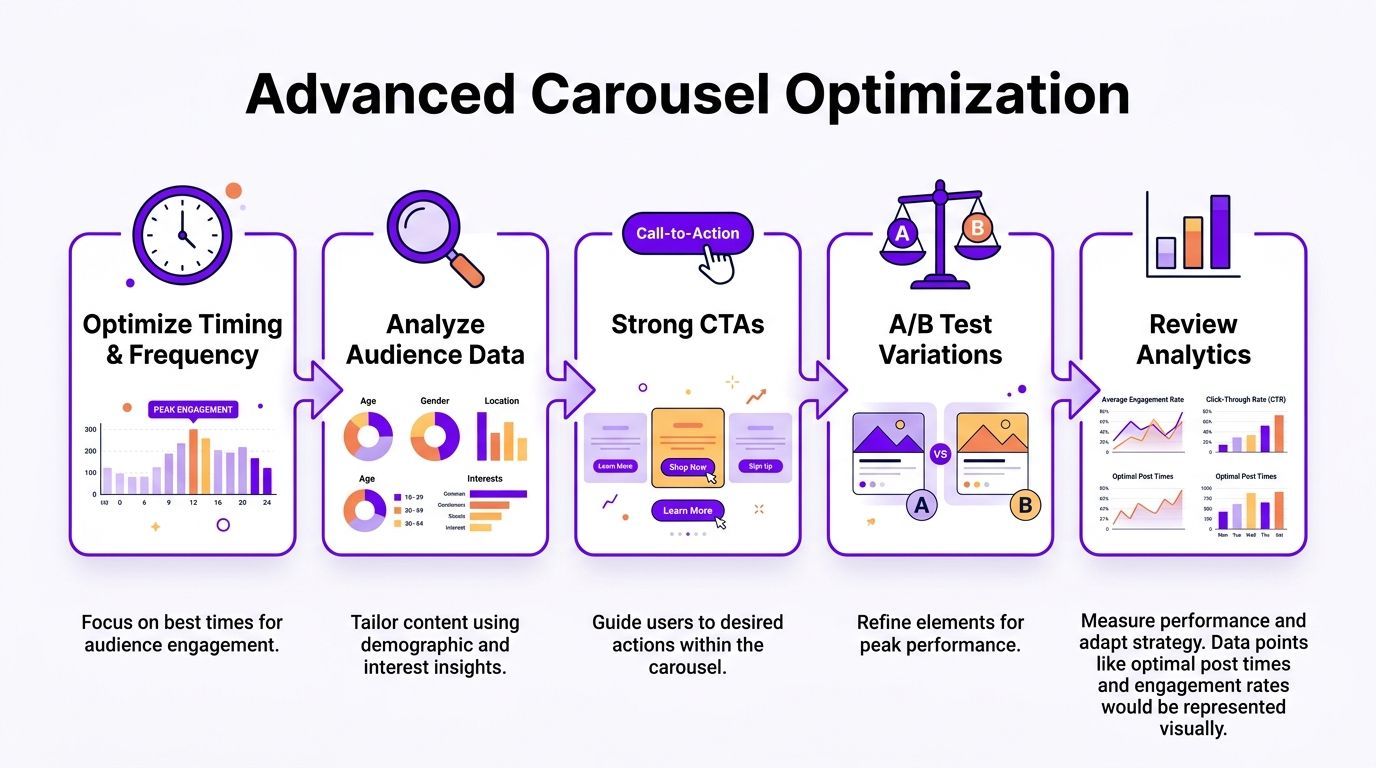
- What to review after each post
- A repeatable playbook
- Common Carousel Issues and Quick Fixes
- My post looks like a file, not a swipeable carousel
- My slides look blurry
- Links inside the PDF don't work
- The carousel gets views but weak discussion
The first LinkedIn carousel I posted beat my usual text update by a mile. Same topic, same audience, same week. The difference was the format and what happened in the first hour after it went live.
LinkedIn carousels are often made harder than they need to be. If you know how to structure the file, upload it the right way, and support it with a sharp caption, carousels can become one of the most reliable post types in your mix.
Why LinkedIn Carousels Are a Game Changer
A LinkedIn carousel is really a document post. You upload a PDF, and LinkedIn turns each page into a swipeable slide inside the feed.
That small shift changes user behavior. People tap, swipe, pause, and go back. Those actions give the post more signals than a plain text update usually gets.
Marketing analysis from Comton Media on LinkedIn carousel creation reports that LinkedIn carousel posts generate 3x more engagement than typical simple text posts because each click to move through the slides counts as an engagement. That gives the format more room to spread in the feed.
If you're still fuzzy on the format itself, Postful has a clear primer on What is a carousel post that shows how this format works across social platforms.
Why swiping changes performance
A text post asks for one decision. Read or skip.
A carousel asks for a sequence of small decisions. Stop. Read slide one. Swipe. Keep going. That extra interaction is why carousels often outperform quick status updates when the topic needs structure.
Practical rule: If your idea has steps, a framework, before-and-after examples, or a short story arc, it usually works better as a carousel than as a plain post.
I use carousels most often for:
- Process breakdowns that would feel cramped in one paragraph
- Opinion pieces where the first slide makes a sharp claim and later slides defend it
- Mini tutorials that need screenshots, examples, or a sequence
- Thought leadership posts where one concept per slide keeps the pacing clean
What works and what doesn't
What works is simple. A strong opening slide, one clear idea per page, and a last slide that tells the reader what to do next.
What doesn't work is dumping a whitepaper into PDF format and hoping people will read it in the feed. LinkedIn users will swipe through a short, tight story. They won't volunteer to read a cramped deck full of tiny text.
A good carousel feels like a guided conversation. A weak one feels like a file attachment.
Preparing Your Carousel File for Maximum Impact
Before you touch LinkedIn, build the file correctly. Most carousel problems start in Canva, PowerPoint, Figma, or Google Slides, not in the upload screen.
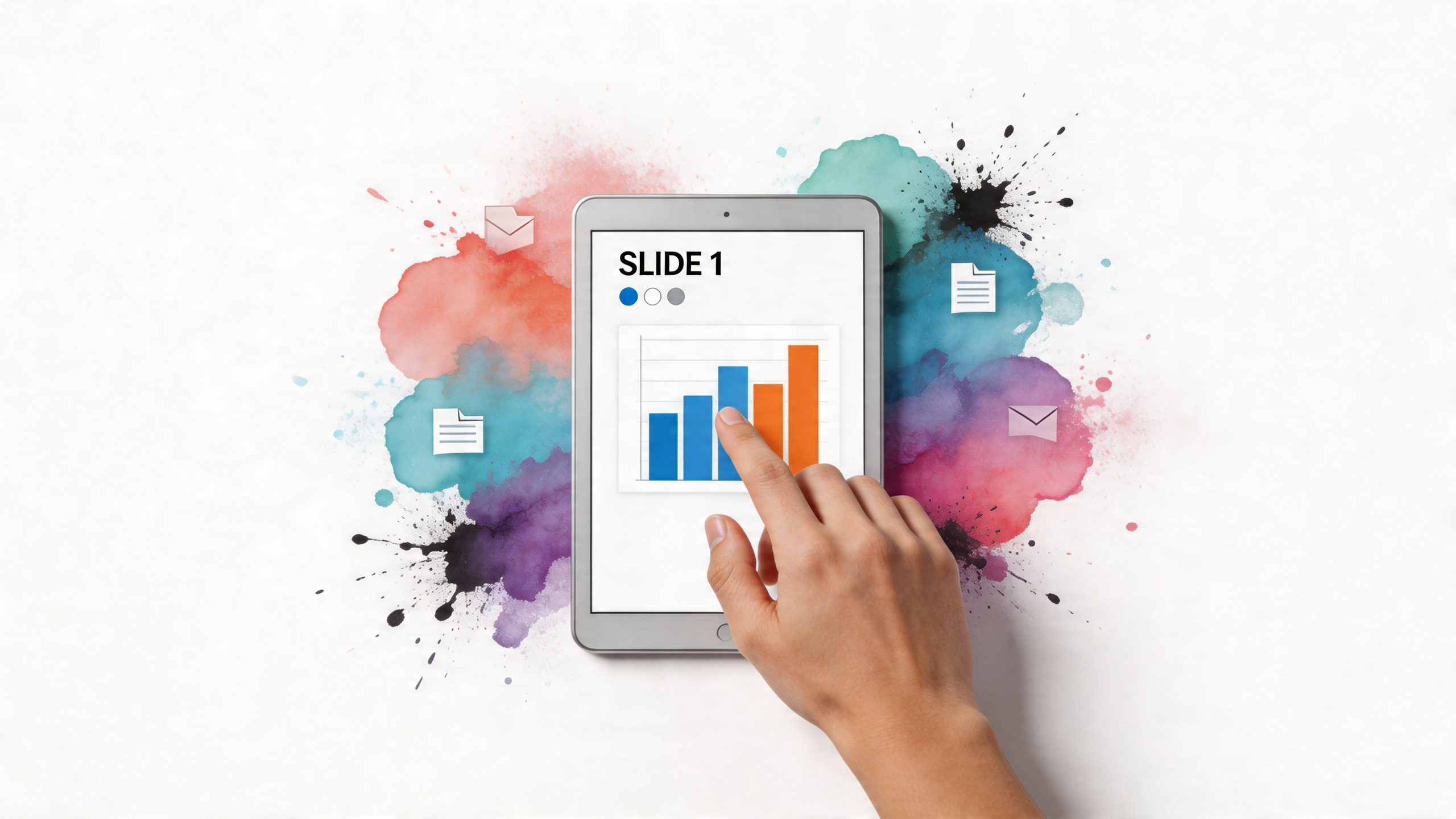
The file format matters most. According to Roloff Consulting's step-by-step LinkedIn carousel guide, the optimal dimensions are 1080×1080 or 1080×1350 pixels per slide, files must stay under 100MB and within 300 pages, and a top mistake that causes 0% carousel activation is uploading separate images instead of a single PDF. The same source notes that 5-15 slides tend to maximize engagement.
Technical specs worth keeping nearby
| Attribute | Recommendation |
|---|---|
| File type | Single multi-page PDF |
| Slide size | 1080×1080 or 1080×1350 pixels |
| Max file size | Under 100MB |
| Page limit | Up to 300 pages |
| Strong working range | 5-15 slides |
If you want a faster way to build layouts, hook slides, and visual sequences, this write-up on an AI Carousel Maker is a useful starting point for design workflow ideas.
Build the story before the slides
Most high-performing carousels follow a simple arc:
Slide one is the hook
Make a promise, ask a sharp question, or name a problem directly.Middle slides do the work
Each slide should carry one idea. Not three.Final slide gives the next step
Ask for a comment, a follow, or a reply. Be specific.
I usually draft the whole flow in plain text first. If the sequence doesn't make sense in a doc, design won't save it.
A carousel is a short presentation, not a screenshot dump.
Design choices that improve readability
LinkedIn is consumed heavily on mobile, so make each slide readable at a glance.
Use:
- Large headlines that can be read without zooming
- High contrast between text and background
- One visual pattern repeated across the deck
- Generous spacing so the content doesn't feel cramped
Avoid:
- Dense paragraphs on any slide
- Random layouts that change from page to page
- Tiny charts with unreadable labels
- Clickable links inside slides as your main CTA
If you're already creating visual content for other channels, it helps to think cross-platform. Teams that publish on several networks often adapt the same ideas for LinkedIn and Instagram, then tune the pacing for each feed. If you manage both, our page on Instagram growth workflows shows how that kind of repeatable content system can save time.
A Guide to Posting on Desktop and Mobile
Once the PDF is ready, the posting process is straightforward. The biggest mistake here is choosing the wrong upload option.
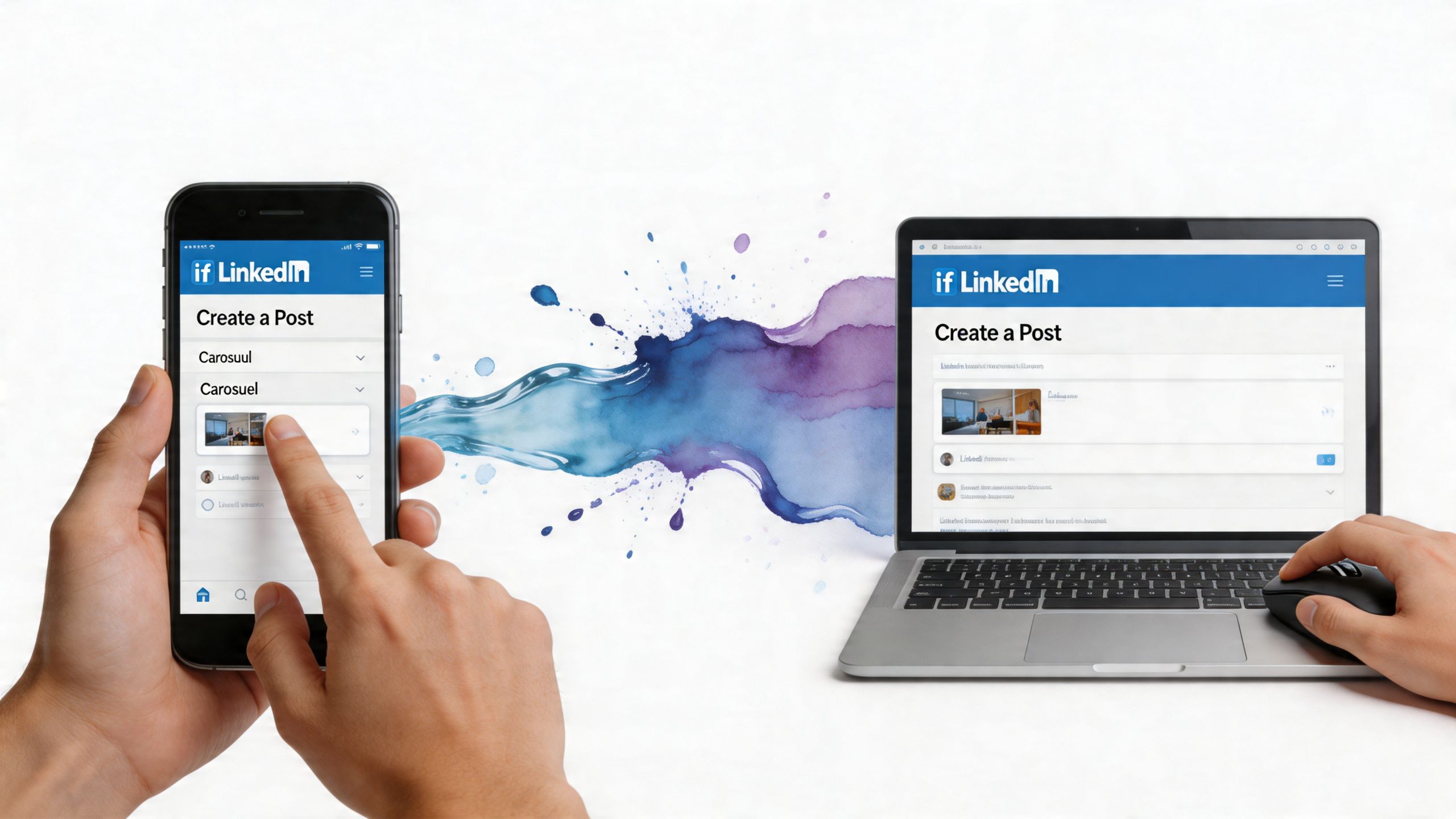
On desktop, don't upload the slides as images. Use the document option so LinkedIn treats the file as a carousel.
How to post on desktop
Here is the cleanest workflow I recommend:
- Click Start a post on LinkedIn.
- Choose the document icon.
- Upload your PDF file.
- Add the document title. This appears above the carousel.
- Write your caption in the post body.
- Preview the slides carefully.
- Post it publicly when everything looks right.
The title matters more than people think. LinkedIn shows it above the carousel, so a generic filename like "Final-v3.pdf" wastes prime real estate. Write a title that sounds like a headline, not an attachment.
A company page manager can also schedule from desktop inside LinkedIn. Personal profile workflows often depend on third-party scheduling tools or manual posting.
How to post on mobile
A lot of creators build on desktop but publish from their phone. That matters because Postiv.ai's LinkedIn carousel workflow guide says mobile uploads comprise 70% of LinkedIn traffic. Their documented app flow is: tap Post, then Add a document, select the PDF from Files or Drive, input the title, add alt text for each slide, paste the caption, and post.
That means your mobile preview isn't optional. If the opening slide looks crowded on a phone, the carousel is already weaker before anyone swipes.
For a quick visual walk-through, this tutorial is useful:
Desktop versus mobile trade-offs
Desktop is better for:
- Proofreading titles and captions
- Checking visual alignment
- Managing company page publishing
Mobile is better for:
- Fast publishing on the go
- Last-minute preview in the actual app environment
- Catching readability issues that desktop can hide
My rule is simple. Design on desktop, then preview on mobile before posting.
If slide one isn't readable on a phone in two seconds, rework it.
After posting, monitor the first comments closely. If LinkedIn matters to your content plan, keeping a repeatable promotion process helps. Our LinkedIn engagement page covers how teams think about early interaction and post momentum without turning the workflow into guesswork.
Writing Captions and Adding Alt Text That Performs
A strong carousel can still flop if the surrounding text is weak. The file gets the swipe, but the caption gets the stop.
Captions are frequently treated as afterthoughts. That's backwards. The first lines frame the whole post and decide whether someone even starts the carousel.
The best caption structure is simple
I use a three-part pattern:
Open with a hook
Make the first line sharp enough to stop the scroll.Add context
Tell the reader what problem the carousel solves.Close with a direct CTA
Ask for one action only.
Here are two versions to show the difference.
Weak:
Posted a new carousel on LinkedIn about content strategy. Let me know what you think.
Better:
Most LinkedIn carousels fail before slide two. This one shows the structure I use to keep people swiping. Which slide would you improve?
The second version gives the reader a reason to care. It also makes the comment prompt easier to answer.
Hashtags and caption length
Keep hashtags relevant and restrained. Three to five focused hashtags is usually enough for discovery without making the post look stuffed.
Use line breaks. Short blocks read better in the LinkedIn feed than one long slab of copy.
A clean caption often looks like this:
- Line one: hard hook
- Line two or three: what the reader gets
- Final line: CTA plus hashtags
Alt text is not busywork
Alt text helps describe each slide for people using screen readers. It also forces you to summarize what each slide is doing, which is a useful quality check on its own.
Write alt text like a short description, not a keyword list. Good alt text is plain and specific.
Examples:
- Slide 1: Title slide reading "5 mistakes people make with LinkedIn carousels"
- Slide 2: Checklist showing file format, dimensions, and PDF export step
- Slide 3: Comparison between weak hook slide and strong hook slide
If your slide needs a paragraph of alt text to explain it, the design is probably doing too much.
For teams that want stronger discussion under each post, our page on LinkedIn comment support shows one practical way to think about replies and conversation quality after publishing.
Advanced Strategies for Peak Carousel Performance
Posting a good carousel isn't the finish line. Key gains often come from timing, pacing, and what happens right after the post goes live.
That's where a lot of creators leave reach on the table. They spend an hour on the deck, then post it at a random time and ignore the first wave of reactions.
Timing and frequency matter
Data from AI Carousels on LinkedIn carousel posting times shows that posting carousels between 7-9 AM or 12-2 PM on weekdays in major markets can yield 20-40% higher impressions. The same analysis warns that posting more than 3-5 carousels weekly can lead to audience fatigue, with engagement dropping 25%.
That lines up with what many social teams see in practice. Consistency works. Saturation doesn't.
A simple operating rhythm looks like this:
- Pick two or three recurring slots each week
- Review what topic worked in each slot
- Avoid stacking similar carousels back to back
- Leave room for other post types so your feed doesn't feel repetitive
The Golden Hour strategy
The first hour after publishing matters more than is commonly understood. If people swipe, react, and comment early, LinkedIn has a stronger reason to keep distributing the post.
I call this the Golden Hour. You don't need fake activity. You need real attention quickly.
That means:
- Be available to reply after posting.
- Send the post to colleagues or peers who care about the topic.
- Ask a clear question on the last slide and in the caption.
- Reply to early comments in a way that extends the conversation.
Field note: A carousel with average design and fast early discussion can beat a prettier carousel that sits untouched for an hour.
What to review after each post
Don't judge a carousel only by likes. Read the comments and watch for patterns.
Ask:
- Did people mention a specific slide? That often means the framing worked.
- Did they answer your CTA? If not, the final slide may be too vague.
- Did the post get impressions but weak discussion? Then the hook likely worked better than the content arc.
- Did people stop at agreement? A stronger opinion or sharper question may create better discussion next time.
This is also where support tactics can help if used carefully. Some creators use community-driven engagement tools to get their best posts seen during the first hour. If you're evaluating options, our page on LinkedIn likes through a community model explains how that approach differs from bot-based services.
A repeatable playbook
The most reliable workflow isn't fancy. It is disciplined.
Use this sequence:
- Draft one clear idea
- Turn it into a tight slide story
- Post in a tested weekday slot
- Stay active in the first hour
- Review comments and carry learnings into the next deck
That cycle compounds. Not because of one perfect carousel, but because each post teaches you what your audience swipes through.
Common Carousel Issues and Quick Fixes
Most LinkedIn carousel problems are easy to diagnose once you know what to check first.

My post looks like a file, not a swipeable carousel
The usual cause is uploading the content incorrectly. One analysis found that 65% of carousels fail to activate properly because the user uploads multiple images instead of a single, multi-page PDF document.
Fix it by exporting all slides into one PDF and uploading it through LinkedIn's document option, not the image uploader.
My slides look blurry
This usually comes from poor export settings, low-resolution source assets, or slide dimensions that don't match the sizes covered earlier.
Fix it by rebuilding the deck at the correct canvas size, then exporting a clean PDF from Canva, PowerPoint, or Figma. If text still looks soft, check whether images inside the deck were already low quality before export.
Links inside the PDF don't work
This catches people all the time. LinkedIn document posts aren't the place to rely on in-slide links as your main path.
The fix is simple. Put the URL in the caption, mention it in the last slide if needed, and make the CTA obvious.
Keep the slides focused on clarity. Put navigation in the post copy.
The carousel gets views but weak discussion
The issue often isn't the design. It's the prompt.
Rewrite the last slide and caption CTA so readers know exactly how to respond. "Thoughts?" is weak. "Which slide would you send to your team?" gives people something specific to answer.
If you want a simple way to support your posts across platforms, Upvote Club gives you a community-based system for real engagement without bots. With our Upvote.club service, you can create tasks for likes, comments, reposts, saves, and followers from verified human accounts, earn points by helping other members, and build early traction during the Golden Hour without sharing passwords. We built it around participation, moderation, and visible accountability, so you're not buying fake activity. You're joining a community where users help each other grow across LinkedIn, Twitter, Instagram, Reddit, TikTok, YouTube, Product Hunt, GitHub, and more.