Table of Contents
- Why Posting Native Video on LinkedIn Is a Smart Move
- Native upload beats external links
- What native video does well
- Posting Your Video from a Desktop Computer
- The desktop workflow
- What I always check before posting
- Good desktop habits
- Uploading Your Video from the Mobile App
- How the mobile flow works
- What mobile is good at
- Where people go wrong on mobile
- Mastering Video Specs and Captions for LinkedIn
- The checklist I use before upload
- Captions are not optional
- Best Practices for Video Engagement and Reach
- Build the post around one idea
- My pre-post checklist
- Timing and follow-up matter
- Getting Initial Activity on Your LinkedIn Video
You’ve probably got a video ready right now. Maybe it’s a client win, a product update, a conference clip, or a quick opinion you recorded on your phone. The part that trips people up isn’t recording it. It’s posting it in the way LinkedIn rewards.
That’s where most guides miss the point. They tell you how to upload a file, but not how to post it natively, format it for the feed, and give it the best shot in the first hour. If you want to learn how to post a video on linkedin in a way that gets seen, that’s the playbook that matters.
Why Posting Native Video on LinkedIn Is a Smart Move
The biggest mistake I see is simple. People paste a YouTube link into LinkedIn and expect it to perform like a native post. It usually doesn’t.
If you care about reach, upload the file directly to LinkedIn. LinkedIn video posts receive 5x more engagement than other post types, according to LinkedIn video performance data covered by Dlvr.it. That one choice changes how your post appears in the feed and how easy it is for people to watch.
Native upload beats external links
When you post natively, LinkedIn can play the video inside the feed. That removes friction. People don’t need to click away to another platform, wait for a page to load, or decide whether it’s worth leaving LinkedIn.
That matters because feed behavior on LinkedIn is fast. Most users are scanning during work breaks, between meetings, or while catching up in the morning. A native video has a better chance of stopping that scroll than an outbound link.
Practical rule: If the goal is visibility on LinkedIn, keep the viewer on LinkedIn.
I treat native video as the default format for thought leadership, team updates, product explainers, hiring posts, and event clips. External video links still have a place, but mostly when the destination matters more than the post itself.
What native video does well
Here’s where native video works better than most post formats:
- Face time: People can see how you speak, think, and explain.
- Message control: You can lead with a sharp hook, captions, and a clean thumbnail.
- Professional context: LinkedIn users already expect business content, so video doesn’t feel out of place.
If you’re posting regularly, it’s worth building a repeatable system around LinkedIn growth on Upvote Club. The posting method matters first. Then the engagement layer matters right after.
Posting Your Video from a Desktop Computer
Desktop is still my preferred setup for planned posts. It’s easier to review the caption, check the thumbnail, tag people correctly, and catch small mistakes before the post goes live.
The desktop workflow
From your LinkedIn homepage, click Start a post. Then choose Add media and select your video file from your computer. Wait for the upload to finish before you rush through the text.
Once the file is in place, write the caption with the first line doing the heavy lifting. Don’t waste that line on “Excited to share…” or “New video just dropped.” Say what the viewer gets, what problem the clip solves, or what opinion you’re taking.
For a personal profile, the process is direct. For a company page, the buttons may sit in slightly different spots, but the flow is the same. Open the page as the page admin, start a post, upload the file, then fill in the post copy and publishing settings.
What I always check before posting
I use this quick desktop checklist:
Thumbnail
Pick a frame that looks intentional. If LinkedIn offers a random mid-sentence frame, change it. A weak thumbnail can make a solid video look sloppy.Caption
Keep it readable. Short paragraphs work better than one dense block. Add a clear reason to comment.Mentions
Use@to tag people or company pages only when they’re directly relevant. Forced tagging looks cheap and people notice.Visibility
Double-check who can see the post before publishing. This sounds basic, but it’s easy to miss when you’re posting fast.Final watch-through
Play the first few seconds once more. If the opening drags, the whole post starts on the back foot.
A desktop post usually wins when polish matters more than speed.
Good desktop habits
A few habits make a difference over time:
- Write in a text editor first: It’s easier to revise without posting half-finished copy.
- Keep the file name clean: It helps you stay organized when you’re handling multiple clips.
- Tag sparingly: Relevant tags can help. Random tags usually don’t.
- Post from a stable workflow: If you use browser-based publishing tools, keep them lightweight. I’d rather use something simple like the Chrome Social install from Upvote Club than clutter my process with tools I don’t need.
Desktop posting isn’t glamorous. It just gives you fewer avoidable mistakes.
Uploading Your Video from the Mobile App
Mobile is the better option when the moment matters more than polish. If you’re at an event, walking out of a meeting, or recording a quick reaction, speed beats perfection.
How the mobile flow works
Open the LinkedIn app and tap the + button or the post creation button, depending on your version of the app. Choose Video if you want to record inside the app, or pick a clip from your camera roll.
After that, LinkedIn lets you trim the video. Use that step. Most mobile clips improve when you cut the dead space at the start and end. People don’t need to watch you reaching for the phone.
Then add your caption. On mobile, I keep it even tighter than on desktop because you’re usually publishing faster and reacting in real time.
What mobile is good at
Mobile posts work best for content like this:
- Event clips: Conference takeaways, backstage moments, quick reactions
- Fast commentary: A short point on a trend, announcement, or industry shift
- Field updates: Team culture clips, launches, office moments, behind-the-scenes footage
The strength of mobile is immediacy. The weakness is that it’s easier to post something half-baked.
Where people go wrong on mobile
Most mobile posting mistakes come from rushing:
- Bad framing: If your face is too small or the background is messy, the post looks careless.
- Weak opening: A long lead-in kills watch time.
- No text support: Many viewers watch without sound, so spoken-only videos often lose people fast.
- Over-editing: Stickers, effects, and visual clutter usually feel out of place on LinkedIn.
If you record on your phone, trim hard. The first second matters more than the fancy edit.
I also recommend previewing the caption once before posting. Autocorrect loves to create embarrassing mistakes in names, job titles, and brand terms. LinkedIn audiences notice that stuff immediately.
Mobile posting is best when you have something timely to say and a clear point to make. If the clip needs a custom thumbnail, more careful formatting, or cleaner captioning, move it to desktop and publish from there instead.
Mastering Video Specs and Captions for LinkedIn
A lot of upload problems come from file issues, not content issues. You can have a good video and still get a poor result if the file is too heavy, the format is off, or the captions are missing.
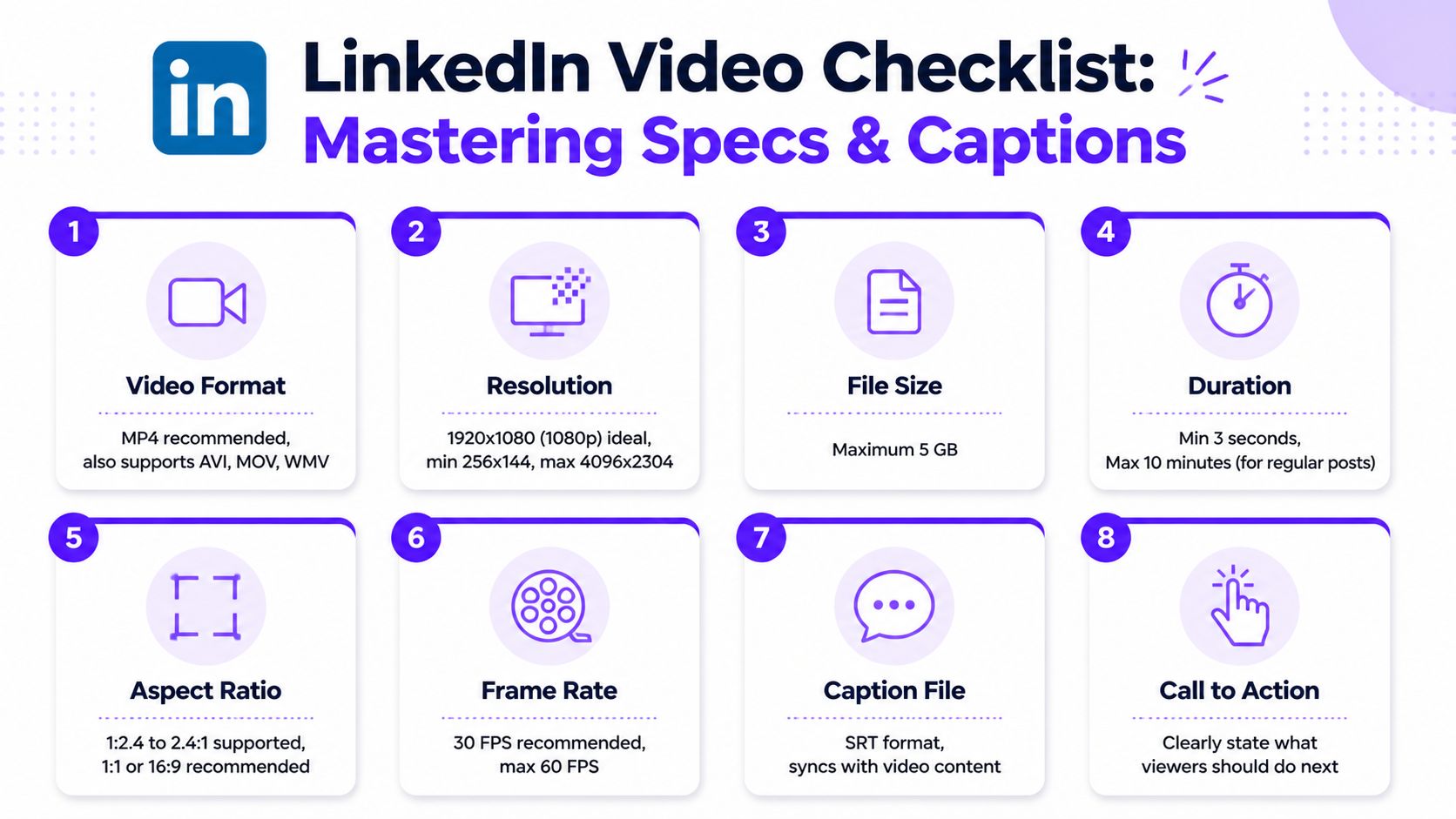
LinkedIn’s native upload rules are straightforward. Videos must be under 10 minutes, with a maximum file size of 5GB, and formats like MP4 are supported, with H.264 recommended, according to Nearstream’s LinkedIn video guide. If I’m exporting a standard feed video, MP4 is the safe choice.
The checklist I use before upload
I run through these checks before posting:
| Item | What to do |
|---|---|
| Format | Export as MP4 when possible |
| Length | Keep it well below the platform maximum |
| File size | Make sure it stays under the upload cap |
| Resolution | Use a clean HD export so the video looks professional |
| Thumbnail | Avoid random frames when you can choose a better one |
What matters in practice is consistency. If your export settings change every week, you’ll waste time troubleshooting things that should be automatic.
Captions are not optional
Captions do two jobs. They help people follow the message when they’re watching without audio, and they make the video easier to understand when someone is skimming in a busy feed.
If you already have a transcript, turn it into captions before upload. If you don’t, a simple workflow is to transcribe the clip first, clean the wording, and then convert it into subtitle format. If you need a starting point, this guide on how to transcribe video to text is useful for building that process.
You can add captions through LinkedIn’s available tools or upload an SRT file if that fits your workflow better. I prefer reviewing captions manually before publishing because auto-generated text often gets names, product terms, and industry language wrong.
Clean captions make an average video easier to watch. Messy captions make a good video look careless.
The best setup is boring in the right way. Export cleanly, caption clearly, and remove anything that could distract from the message.
Best Practices for Video Engagement and Reach
A correct upload doesn’t guarantee a good post. Reach usually comes down to packaging. The opening line, the video length, the on-screen hook, the call to action, and the timing all work together.
Optimal LinkedIn video length is 15-30 seconds, based on Sprout Social’s LinkedIn video analysis. That matches what I see in practice. Short clips force you to tighten the message and get to the point faster.
Build the post around one idea
The strongest LinkedIn videos usually do one thing well. They answer one question, make one argument, show one lesson, or share one moment worth discussing.
Here’s the structure I like:
- Open fast: The first line of the caption should earn the click.
- Make one point: Don’t cram three topics into one short video.
- Ask for one action: Comment, agree, disagree, or share a similar experience.
If the clip feels crowded, split it into multiple posts.
Here’s a useful breakdown of how experienced creators think about packaging short videos for the feed:
My pre-post checklist
Before publishing, I ask:
- Would I stop for this first line?
- Does the first visual make sense without extra explanation?
- Are the hashtags relevant, not decorative?
- Is the CTA easy to answer?
For hashtags, I keep it focused. A small set of relevant tags is better than a long list that tries to cover every angle. For the CTA, simple usually wins. “What would you add?” works better than a long, forced prompt.
If you want to sharpen the editorial side of your workflow, this piece on LinkedIn posting strategy is a solid companion read.
Timing and follow-up matter
Publishing is only the first move. Stay around after the post goes live and reply to comments while the conversation is fresh. Early discussion helps the post feel active, which attracts more discussion.
If part of your strategy includes extending reach through shares, plan for that too. A clean repost process matters more than commonly realized, and LinkedIn repost support on Upvote Club can help if repost activity is part of your distribution plan.
Short videos win when the idea is tight, the opening is clear, and the next step is obvious.
Getting Initial Activity on Your LinkedIn Video
A lot of people treat publishing like the finish line. It isn’t. The true test starts right after the video goes live.
The first hour matters because that’s when LinkedIn gets its earliest signals. If people react, comment, and share quickly, your post has a better shot at reaching beyond your immediate network. If nothing happens early, even a good video can stall.
That is why I do not post and disappear. I answer comments, message relevant contacts if the topic fits them, and make sure the post does not sit there cold. This is also where community-based support can help, as long as it comes from real users and not fake engagement.
With our LinkedIn likes workflow on Upvote Club, you can get that early activity through a community model rather than bots. We built Upvote.club around verified human participation. Users complete tasks for others, earn points, and use those points to create tasks for their own content. No password sharing. No fake account farm. No pretending that bought engagement is the same as real interaction.
What makes our system different is the structure. Upvote Club isn’t a place where people purchase empty numbers. It’s a community where members help each other push content during the window when social platforms pay the most attention. New users get free points and task slots to start, then earn more by participating. We also use strict moderation and account verification, so the activity comes from actual people.
If you already know your content is solid, this step solves a common gap. Posting well is one job. Getting the right early traction is the second one.
With Upvote Club, you can support your LinkedIn videos with real early engagement from verified human accounts, not bots. We’ve built Upvote.club as a community-driven system where you complete tasks, earn points, and use them to get likes, comments, reposts, saves, and followers across LinkedIn and other platforms. If you want your next video to get a stronger start in the Golden Hour, join the community and put that first-hour momentum to work.